

Notion is your trusty companion for flexible management for your work and teamspaces.
This dynamic platform allows you to organize tasks, adapt workflows, and effortlessly track your project’s progress.
But how can you make sure your valuable data stays safe and sound while it’s stored on the platform?
In this blog, we’ll explore why shielding your Notion data is an absolute must, unravel the how-tos of effective backups, and introduce you to BackupLABS as your ultimate solution for securing your Notion workspaces.
Why Is It Important to Back up Your Notion Data?
It’s crucial to back up your Notion data because even though the platform backs up its internal systems, it doesn’t provide an automated nor managed backup and restore solution for individual users, even on their paid plans.
Notion follows a shared responsibility model, which means they make sure their network and servers are operational, but safeguarding your data is your responsibility.
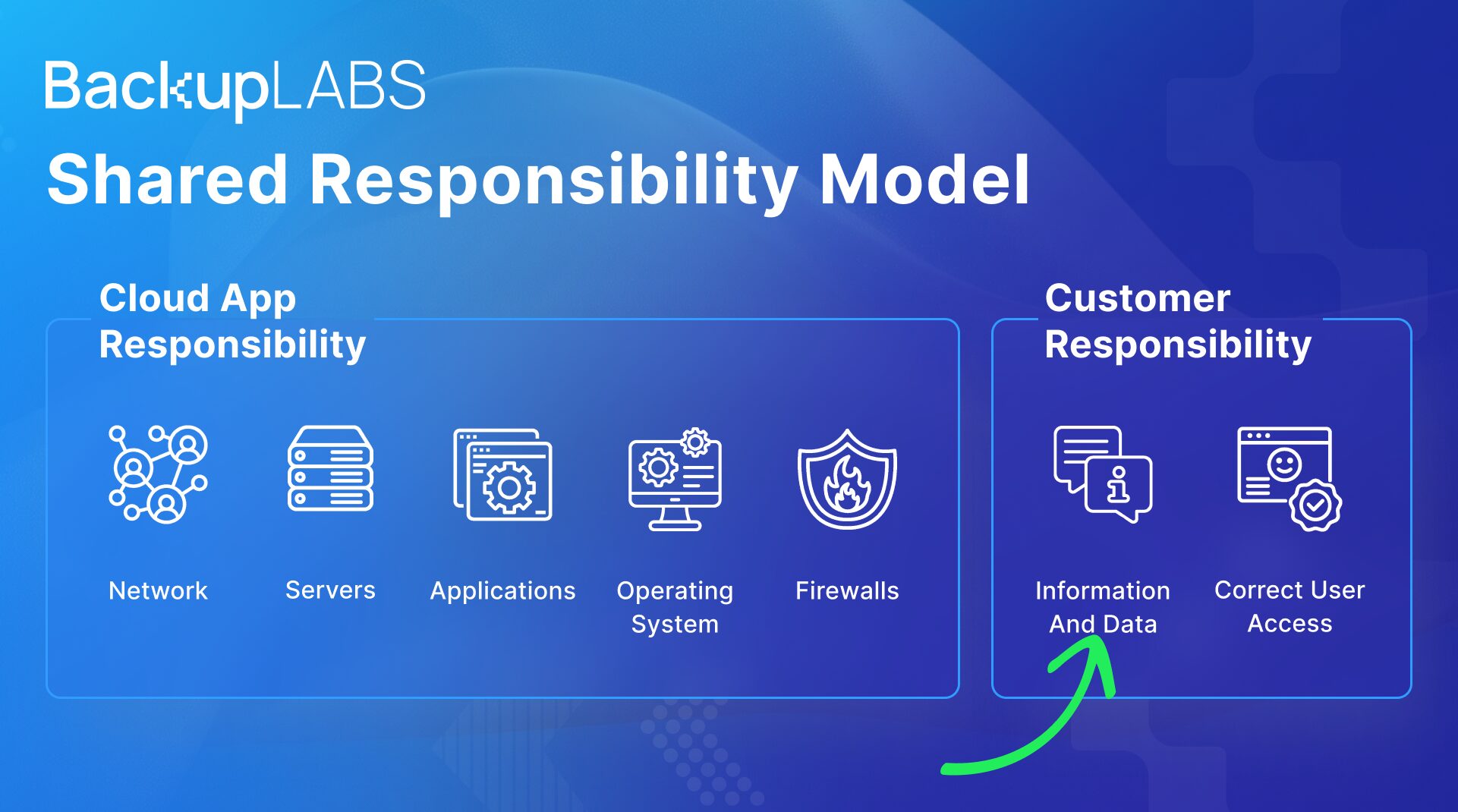
Without a personal backup, you risk losing valuable data if any unexpected issues occur within the platform.
- Information loss: You may lose important notes, documents, and project details, disrupting your work
- Work disruption: Data loss can cause delays and disruptions in daily tasks and projects, affecting productivity
- Reputation impact: If sensitive client or customer information is lost, it can damage your reputation with customers
- Financial costs: Recovering lost data alone can be costly, but data loss might also lead to missed opportunities and lost revenue
- Emotional stress: Data loss can be emotionally distressing, causing anxiety and frustration for you, your team, and your customers
How To Backup Your Notion Data
There are several methods for backing up your Notion workspaces. You can do it yourself (manually), or work with a third party backup provider (automated).
Manually Export Notions backups
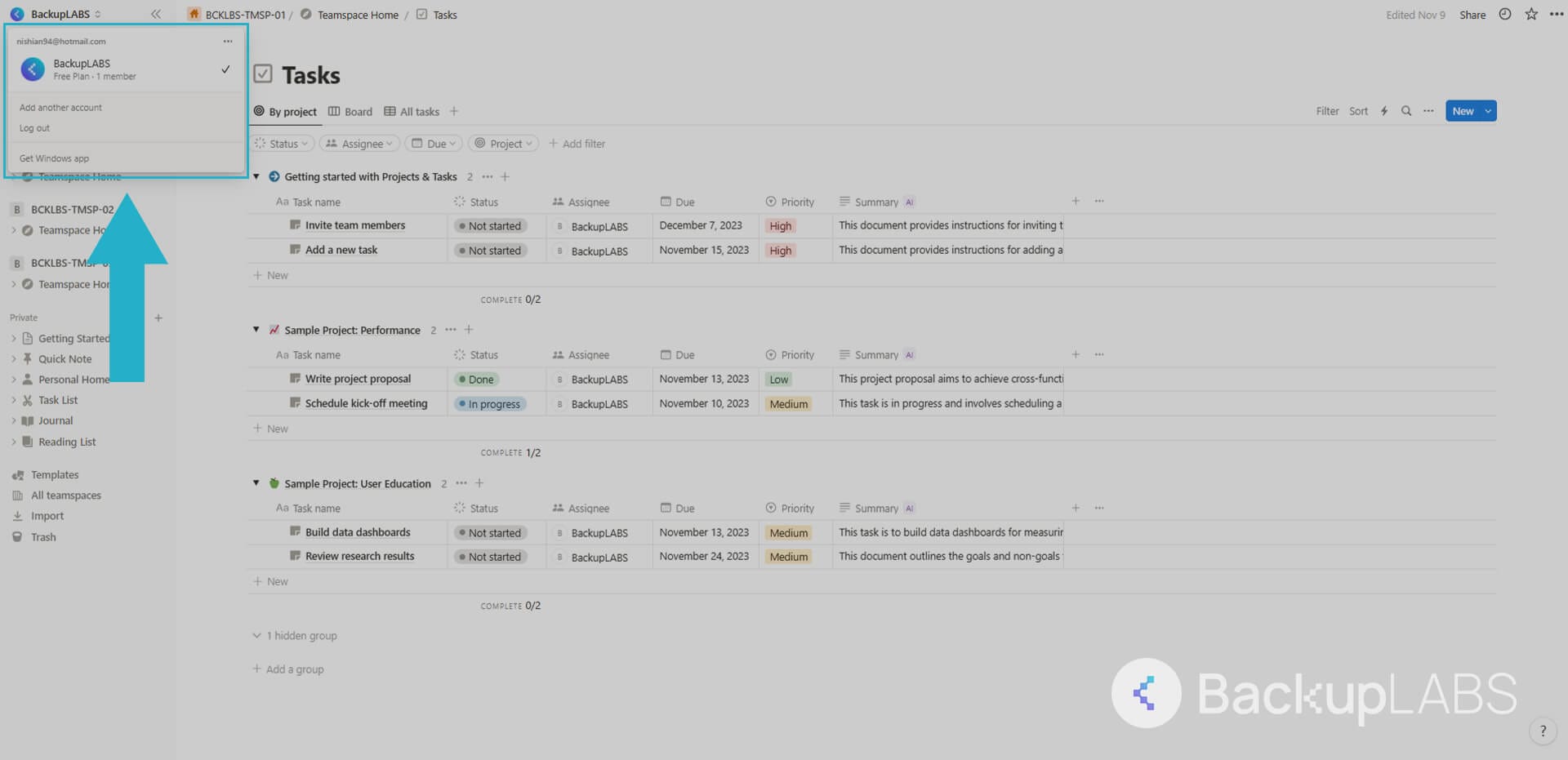
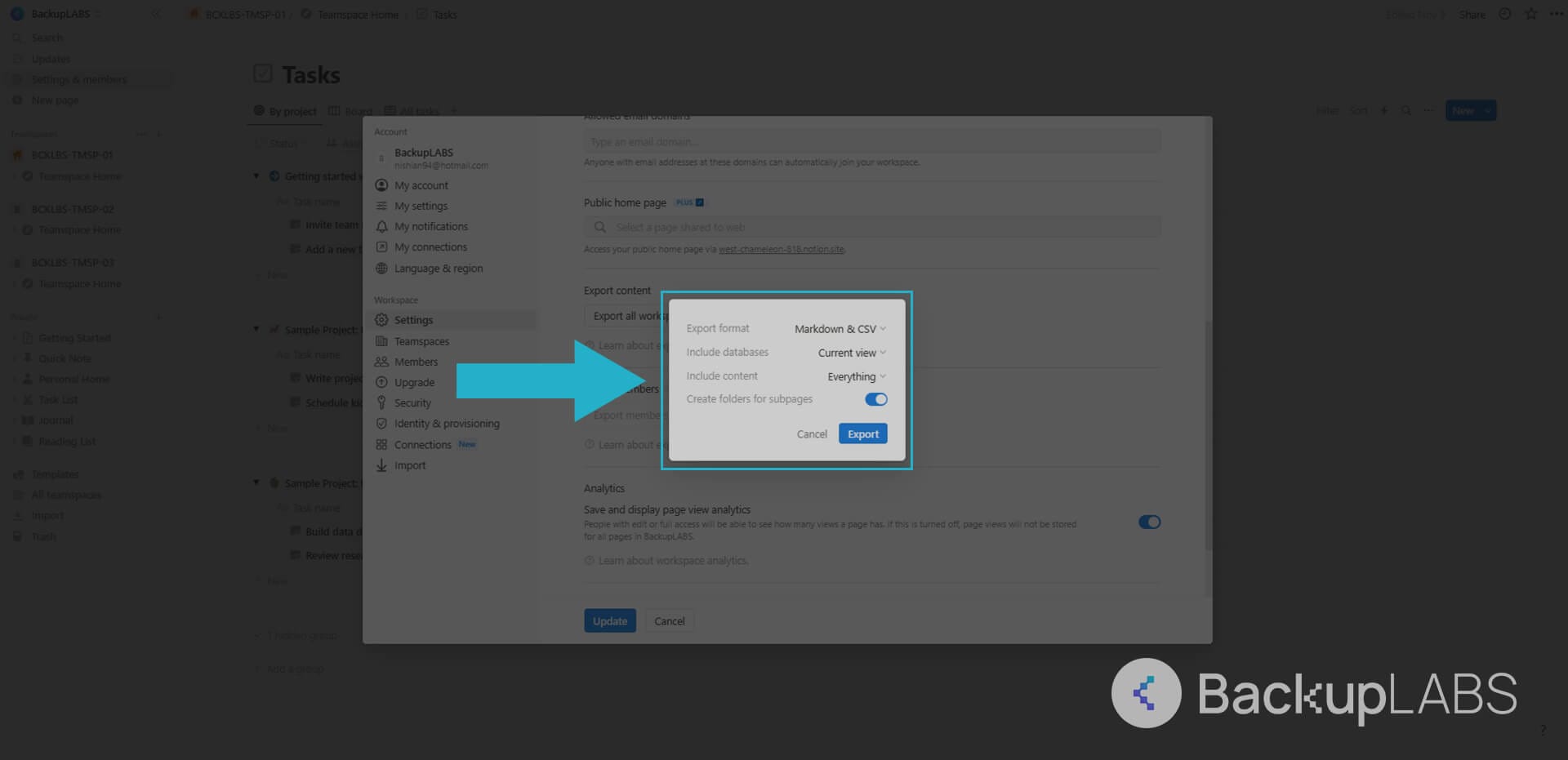
1. Inside Notion, select the Workspace you want to export
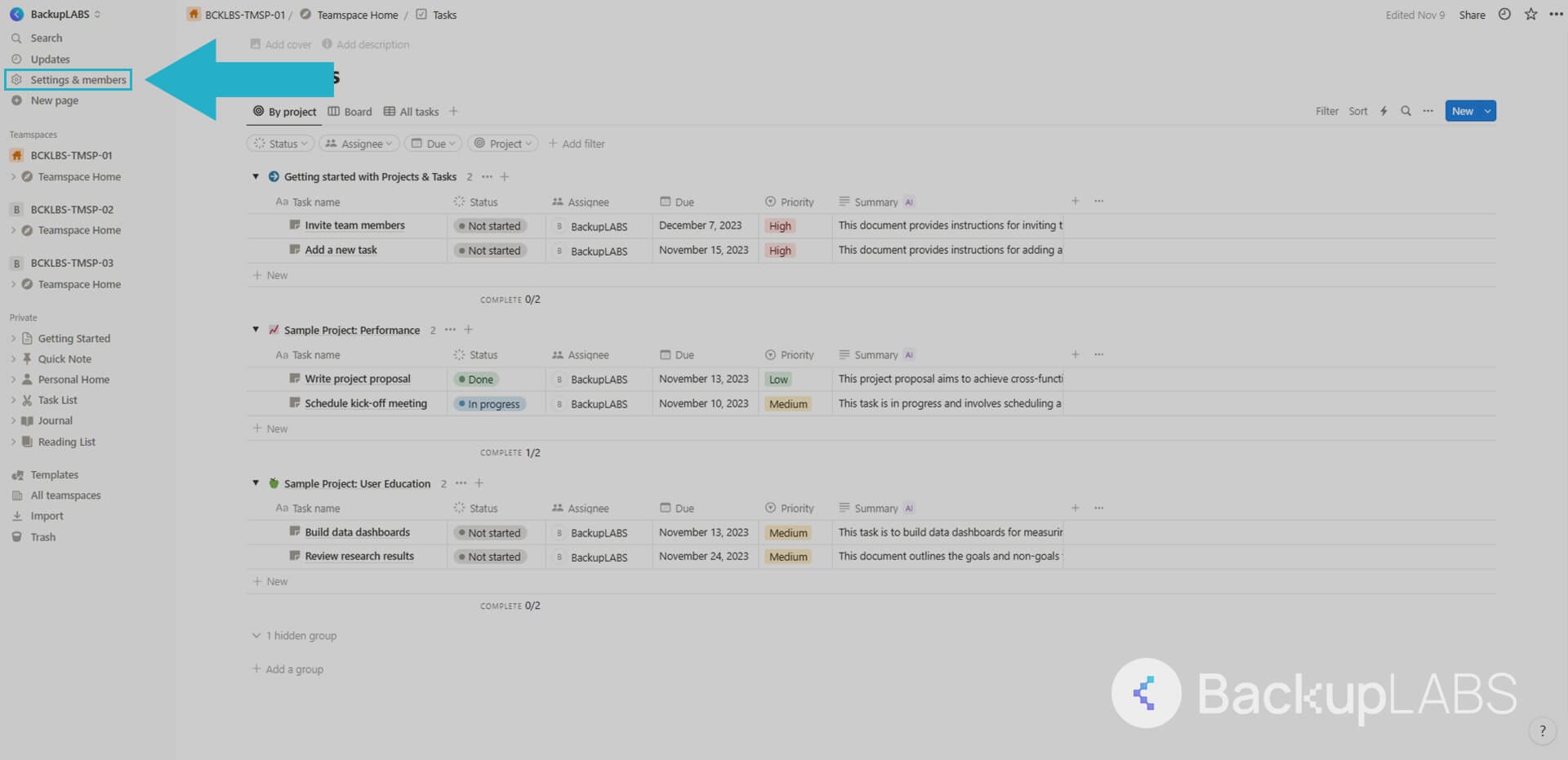
2. Then select Settings & members
3. Select Settings and scroll down to Export content
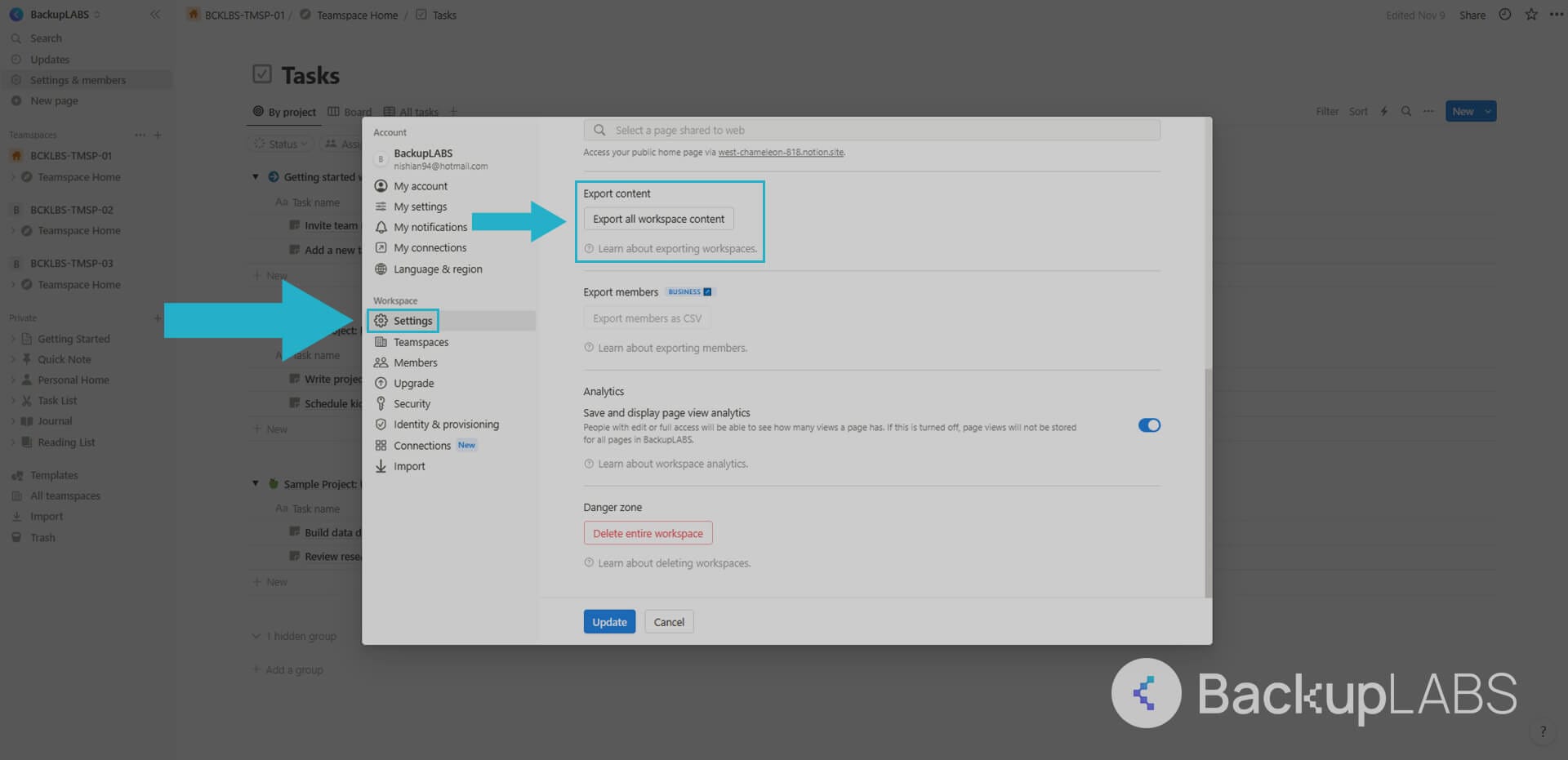
4. Select Export all workspace content, then review the options available. When ready, select Export
Pros:
- Cost: Even with a free account, this option is available
- Archive accessibility: The ability to add a clear separation to your teamspaces makes it easier to read your archives
Cons:
- Time-consuming: Regular manual backups can be time-consuming, especially for extensive workspaces
- Risk of forgetting: If you forget to back up your Notion account manually on a consistent schedule, you risk losing recent data
- Human error: Management of manual backups can be prone to human errors
- Unclear metadata: While the export is straight forward, it’s unclear what is really included in your archives
- Desktop only: This method can only ever be done via a desktop browser
Artur’s GitLab Notions Backup Script
This is a free, custom made, script based solution using GitLab for automated Notion backups. It’s great for Workspaces featuring large imagery. More information can be found here.
1. Copying Notion’s behaviourInside Notion select Settings & members, then open Chrome DevTools and select the Network tab• Go to XHR and clear the console, begin the export and select enqueueTASKNext, navigate to Headers and scroll down to cookie and find this:
Set Notion Token

token_v2=xxx;
Copy and paste (for safe keeping) the following:
Token Format
token_v2=
Finally, at the bottom of the page under Request PayLoad, save the spaceID value and label it NOTION_SPACE_ID
- GitLab Token
Inside GitLab, navigate to Settings, then Access Tokens
Select Create Personal access token, and then copy paste (for safe keeping) the CI_PUSH_TOKEN under Your new personal access token
- Script setup
Create a new Project and select Set up CI/CD
Paste the following script from here in the .gitlab-ci.yml file
- Creating a cronjob
Inside GitLab, select CI / CD under Schedules
Select New schedule and complete the page with what you want
Then Save pipeline schedule followed by Play. Be patient until the progress circle is green.
Pros:
- Automation: Streamlines Notion backups with an automated process, saving time
- Includes imagery: Ensures comprehensive backups, especially beneficial for Workspaces with large imagery
- Free to setup: Cost-effective solution, allowing you to set up automated backups without additional expenses
Cons:
- Scripting knowledge: Setting up Artur’s GitLab Notions Backup Script demands scripting proficiency, potentially posing a challenge if you don’t have prior scripting experience
- Potential additional external costs: Storage will eventually result in paid and if not, self management to keep within your account limits
- Management: Some level of managing is still required for your archive history
- Unclear Metadata: It’s not clear how much is retained
Shockz’s GitHub Automation Script for Notion
A free custom Python 3 script that’s compatible with Windows and Linux.
- Installing
• Get the necessary files to start with the repository here
• The scripts requies Selenium. Install it from your terminal or SSH using:
Install Python Dependencies
pip install selenium pip install requests
- Running
Then run the repository:
Clone Notion Backup Repository
git clone https://github.com/shockz-offsec/Automatic-Notion-Backup.git

cd Automatic-Notion-Backup
- Cofiguration
The config.json contains this, to customise later:
Clone Repository
{

"REMOVE_IDS": true,

"NOTION_SPACE_ID": "Your_space_id",

"DOWNLOAD_PATH": "C:UsersYourUsernameDownloads",

"TARGET_PATH": "C:pathtoyourbackupfolder",

"DEBUG_PATH": "C:pathtoyourlogsfolder",

"EMAIL": "your_notion_email",

"PASSWORD": "your_password"

}
REMOVE_IDS: a boolean parameter that indicates whether the script should remove AWS identifiers from the downloaded files
NOTION_SPACE_ID: The space id of your notion notes
DOWNLOAD_PATH: the path where the downloaded files will be stored
TARGET_PATH: the path where the processed backup files will be stored
DEBUG_PATH: the path where the script logs will be saved
EMAIL: the email address associated with the Notion account
PASSWORD: the password associated with the Notion account
- Tokens
Go to Notion and Inspect Element inside your desktop browser
Select the Network tab and refresh the page
Locate getPublicSpaceData and select one occurrence
In the Response tab your Space ID will be the first value in the first ID field. Copy paste this ID under NOTION_SPACE_ID inside the config.json file from earlier
- Usage
Run the following command on your SSH terminal
Run Notion Backup Script
python3 notion_backup.py
- Automate
To automate and create cronjobs for your backups.
Windows
Create a schedule inside Windows Task Scheduler. Create a .bat and then use:
Windows Batch Script
@echo off

C:Python3python.exe "C:pathtonotion_backup.py"
Linux
Use a standard Cronjob
Pros:
- Automation: Saves time and effort by automating the Notion backup process
- Free setup: No additional costs; the script is accessible without financial barriers
- Customizable: You can tailor the backup schedule and content according to their preferences
Cons:
- Scripting knowledge required: Requires scripting knowledge, including familiarity with Linux, limiting accessibility
- Potential additional costs: You may face extra storage expenses on servers or GitHub, depending on data volume
- Unclear metadata: Lack of clear metadata may hinder your organization and searching for specific backup versions
- Manual version management: You must manually handle versioning, lacking the convenience of automatic version control
The Bottom Line
While the manual approaches discussed in this blog might suffice for individual users or hobbyists seeking to back up their Notion data, there is no doubt a higher level of data protection and accessibility is needed in professional and corporate settings.
Overall, reliability, robustability, convenience, advanced features and encryption can only be found through a reputable backup provider like BackupLABS.
Automated Notions Backups with BackupLABS
The second option for backing up your valuable Notion data is to enlist the help of BackupLABS as your backup provider.
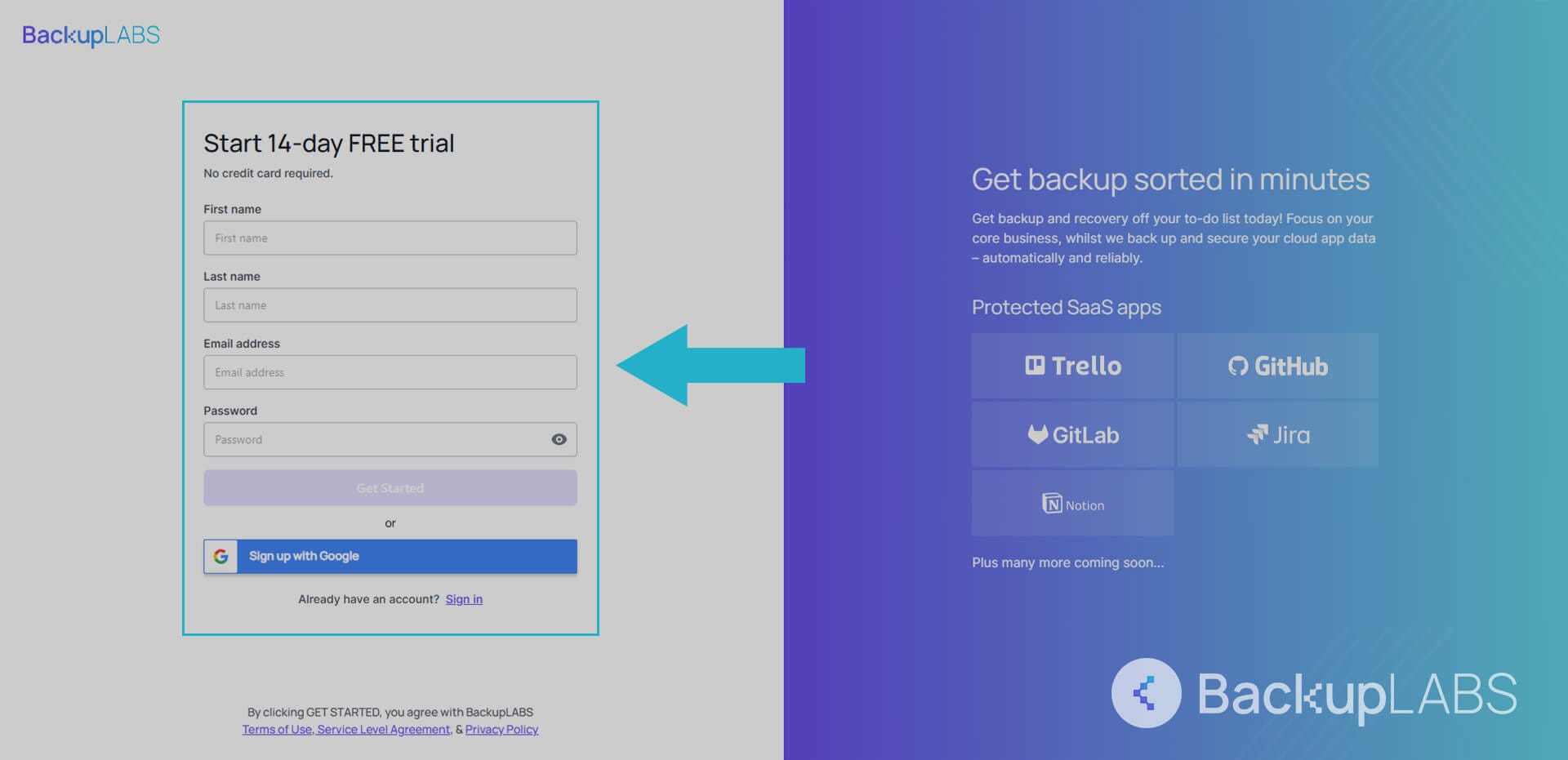
1. Create a BackupLABS account
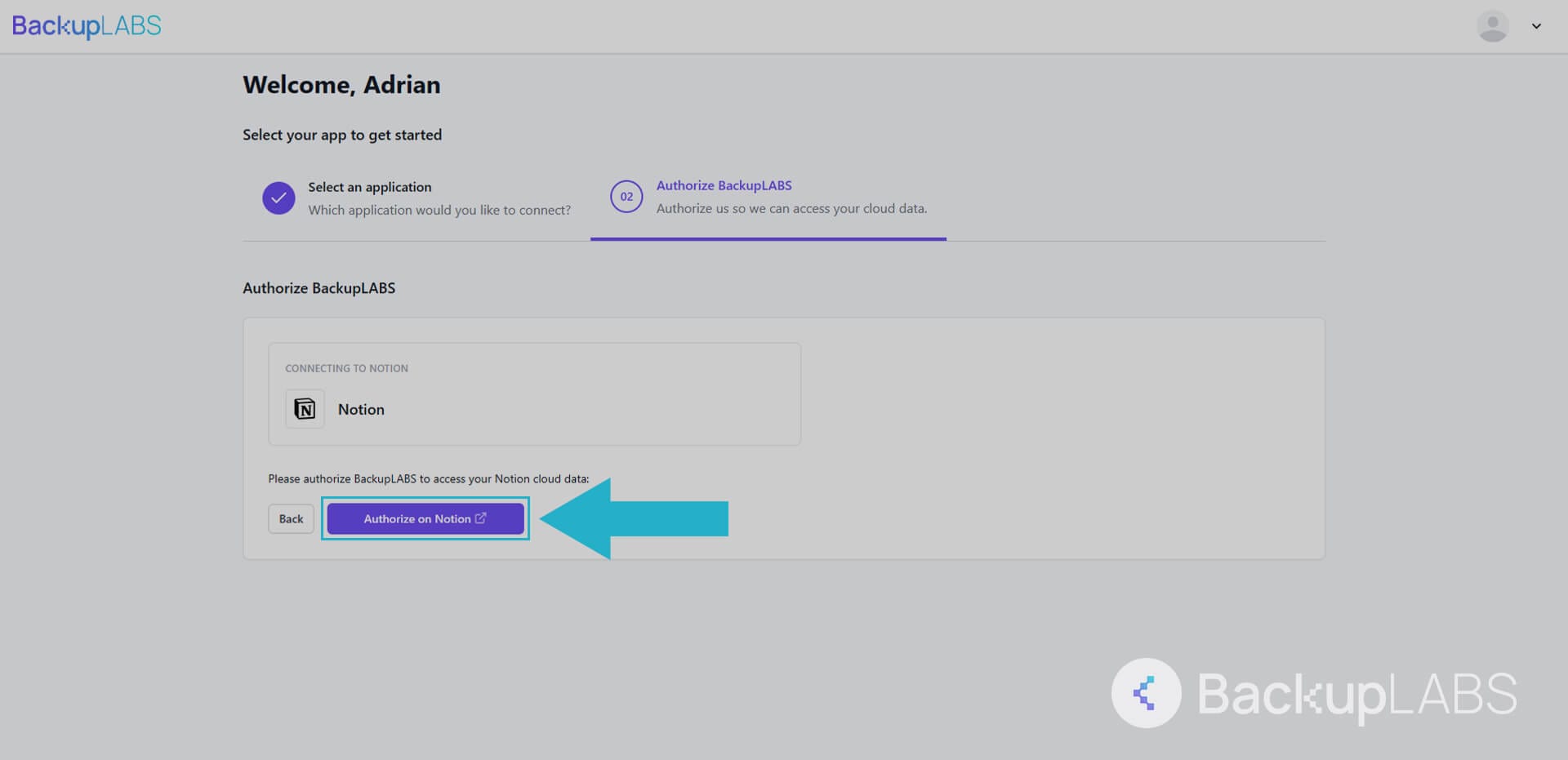
2. Authorise your Notion account with us
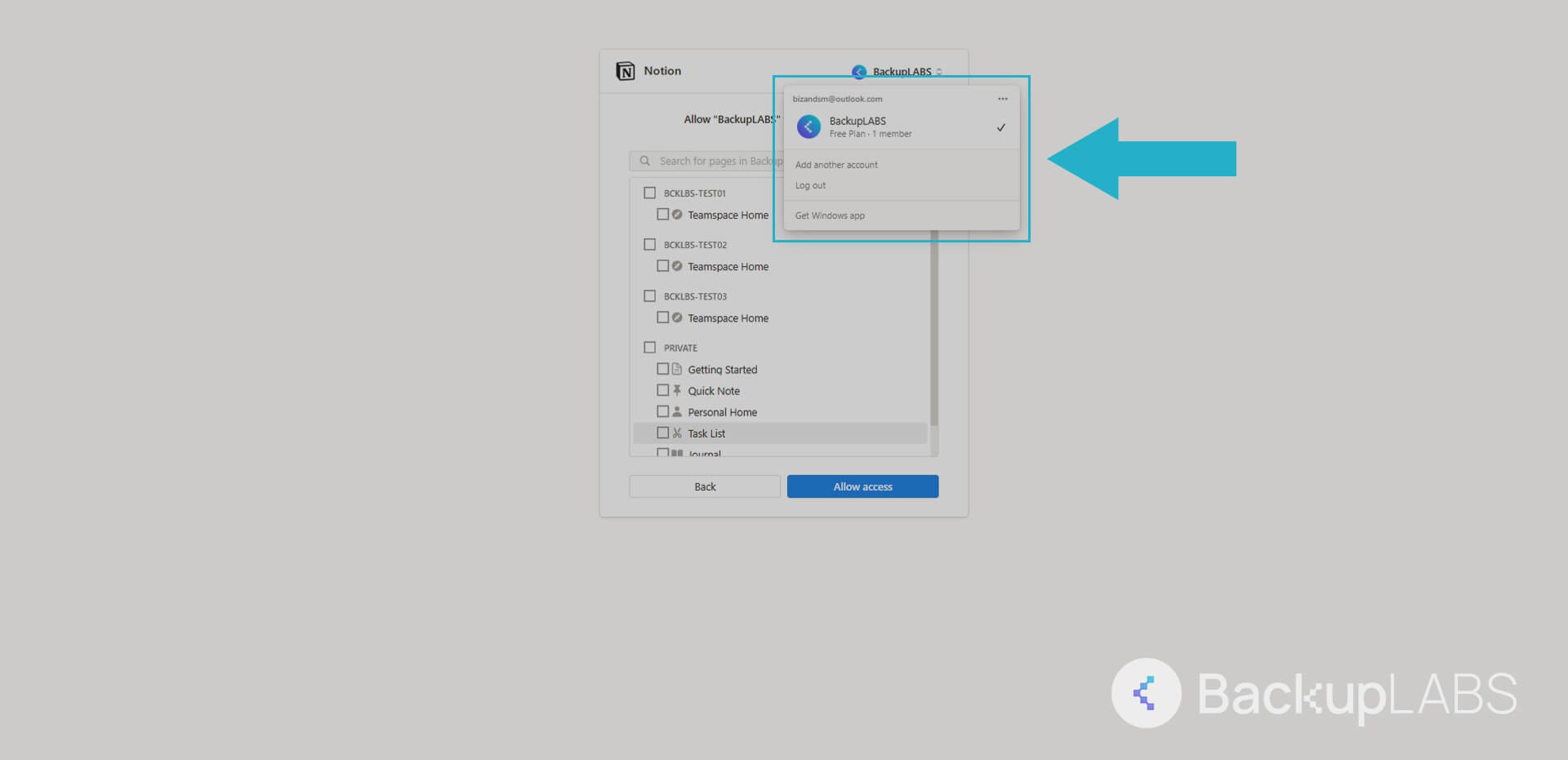
3. Add as many of your workspaces as you’d like
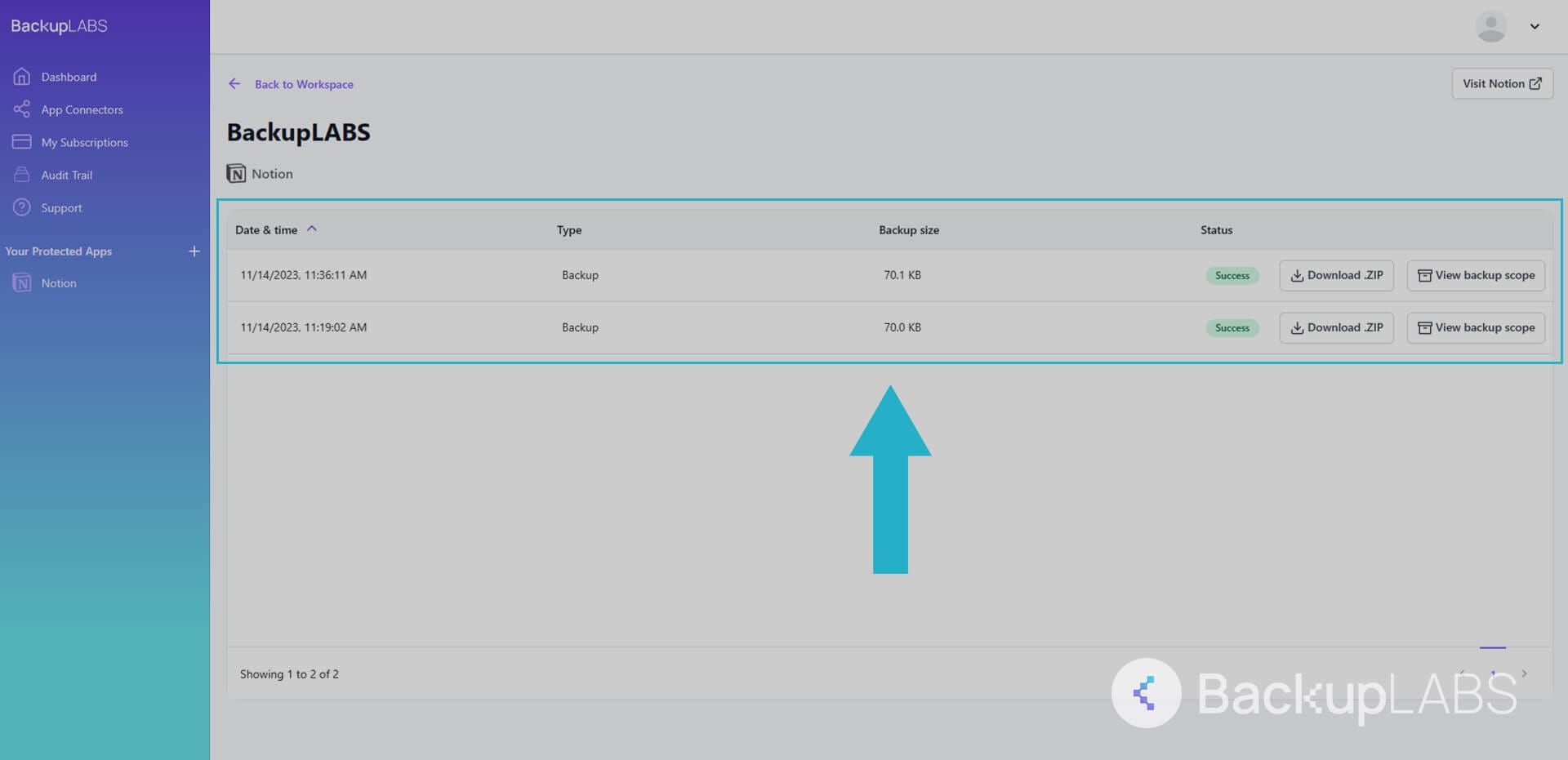
4. Access your workspace backups at any time to review as well as download for archive
Why Choose BackupLABS as Your Notion Backup Solution?
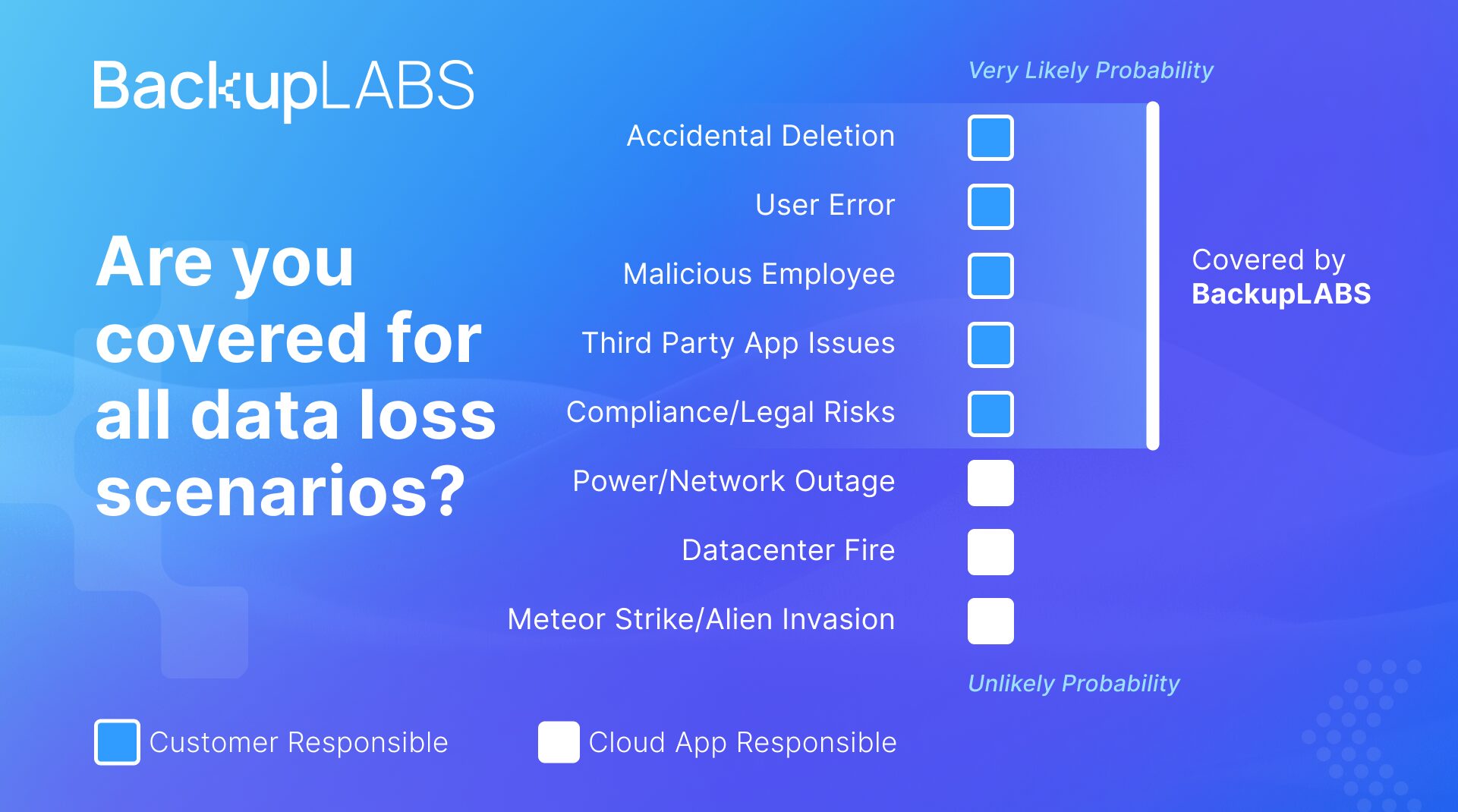
Notion operate on the Shared Responsibility Model. Put simply this means they look after their servers, application and network. However the data, your data, remains your responsibilty to backup and protect against common risks.
 This guide covers the manual route. If you would rather it happened on its own, our automated Notion backup runs daily and restores in one click.
With BackupLABS you can benefit from:
- Effortless backup: Backup and restore your Notion data with a few clicks with our user-friendly interface. No coding or scripting is used.
- Rapid Setup: Secure your Notion workspaces and multiple files in under 5 minutes, guaranteeing minimal disruptions to your workflow.
- Data compliance: Keep accurate and easily accessible records of your Notion data history in compliance with current regulations and standards.
- Robust encryption: Your data is safeguarded with 256-bit AES encryption during transfer and storage, providing top-tier security.
- Ransomware defense: Shield your data from malicious attacks, ransomware, and potential breaches, safeguarding your crucial information.
- 24/7 customer support: Our dedicated and friendly support team is available round-the-clock to assist you with any issues for seamless Notion data backup.
- Daily progress reports: Stay updated with access to daily reports on the status of your data backup, offering peace of mind and transparency in data protection.
- Ownership: Download and keep all your backups on demand.
Try BackupLABS for yourself. Sign up for our 14-day free trial.


