
Notion is one of the most popular productivity and collaboration platforms out there now. It is used by over 35 million users worldwide (as of 2025) and competes with other apps such as Asana, Obsidian, OneNote, Trello, Monday, ClickUp and Jira.
It can be used to track various aspects of your personal life, project management, collaborate with others in an organization, task tracking, or even use it to run an entire company.
It stands to reason therefore, that there is an incredible amount of data held within Notion, and that data is critical to millions of users worldwide.
In this tutorial, we’ll guide you through the process of exporting your Notion data effectively.
Why Export Your Notion Data?
Notion declares that your data is safe in Notion. That may sound nice and reassuring, but their Terms and Conditions state something different:
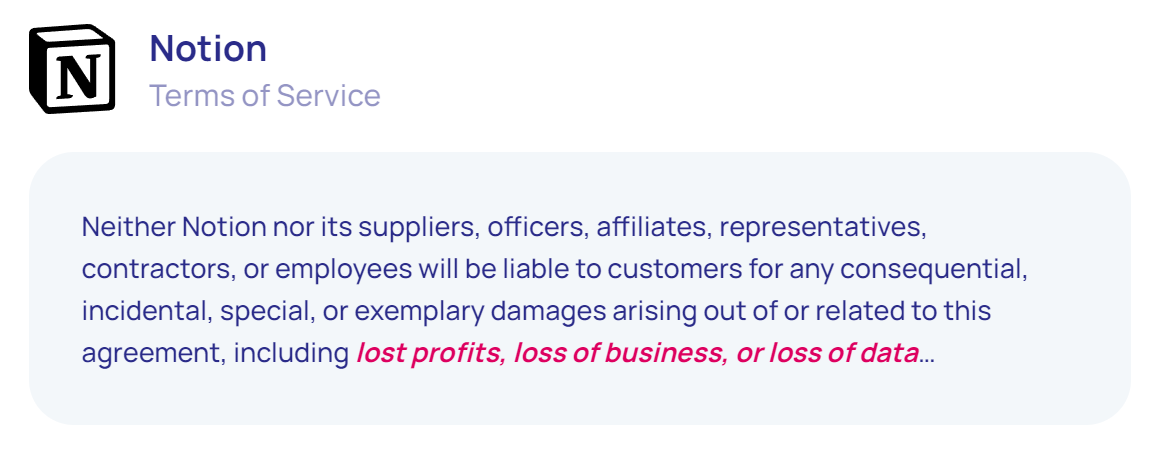
Notion is a cloud-based application. As with all “cloud” systems, it’s just someone else’s computer (or server). Notion will backup your data from an operational point of view in case they have a disaster, but there are various other risks to your data.
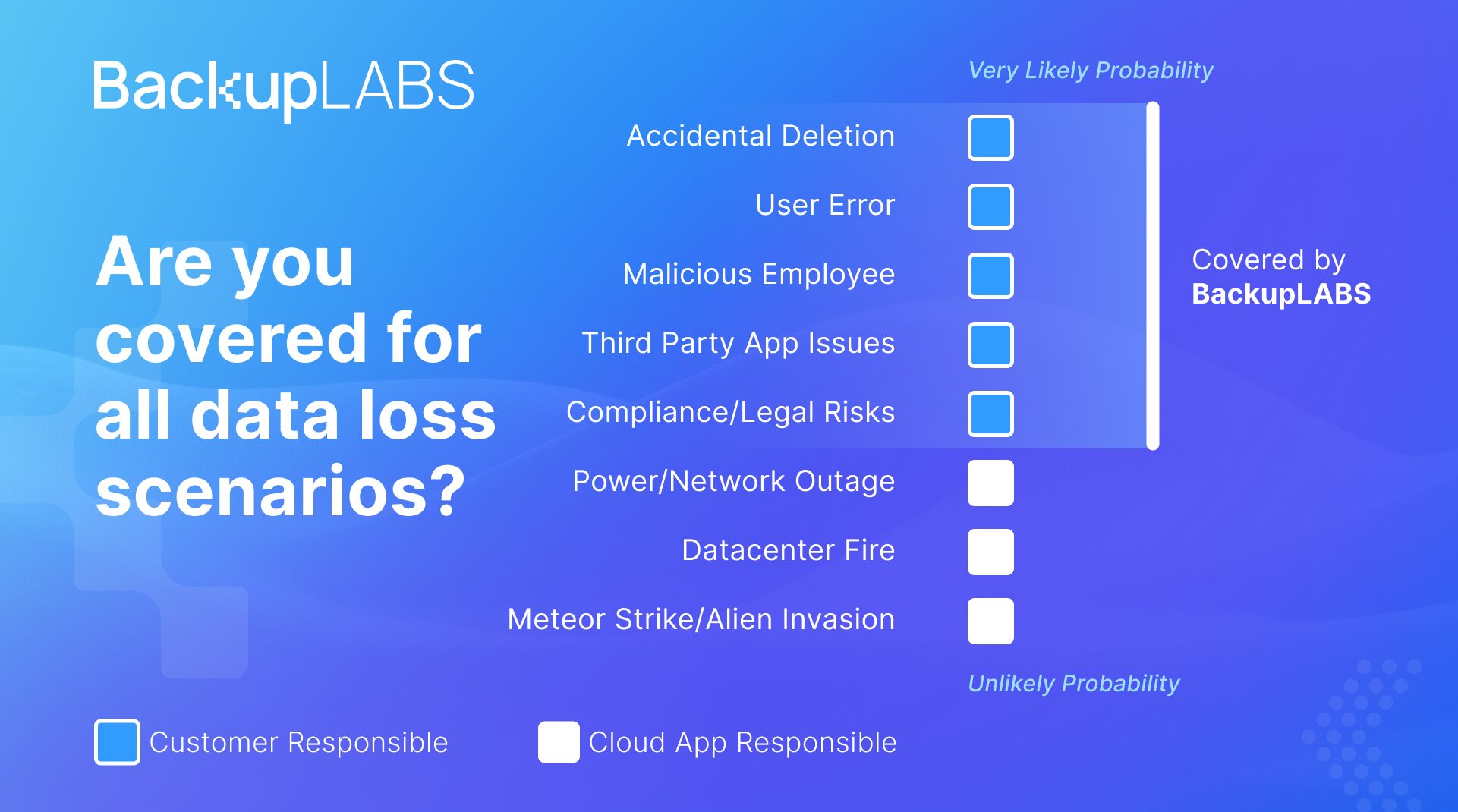
Notion operates on the Shared Responsibility Model, common with all cloud providers. Essentially this means that they look after their servers and Internet connectivity, but the actual responsibility for your data remains with you.
The most common reason for data loss is human error. Simply put, data is accidentally deleted. Notion does have a recycle bin, but this is limited to storing your deleted items for 7 days only on the Free Plan. The Plus Plan is not too much better but does give you 30 days to recover deleted data.
In addition to human error, there are other risks such as malicious employees, hackers/viruses, platform issues and compliance reasons such as ISO and SOC2. Only recently a Notion user on Reddit had all their Notion data deleted by Notion themselves.
It is therefore prudent to ensure that you have a copy of your data outside of Notion. Finally, you may wish to migrate your data away from Notion and into another productivity platform.
How to Export Your Notion Data
Exporting data usually takes a few minutes but can depend on the size of your workspaces. Let’s begin:
1. Log into your Notion account via your web browser. Note that exporting features is more straightforward on a desktop than on mobile.
2. On the left hand menu, select the workspace you wish to export.
3. Click Settings & members, then Settings.
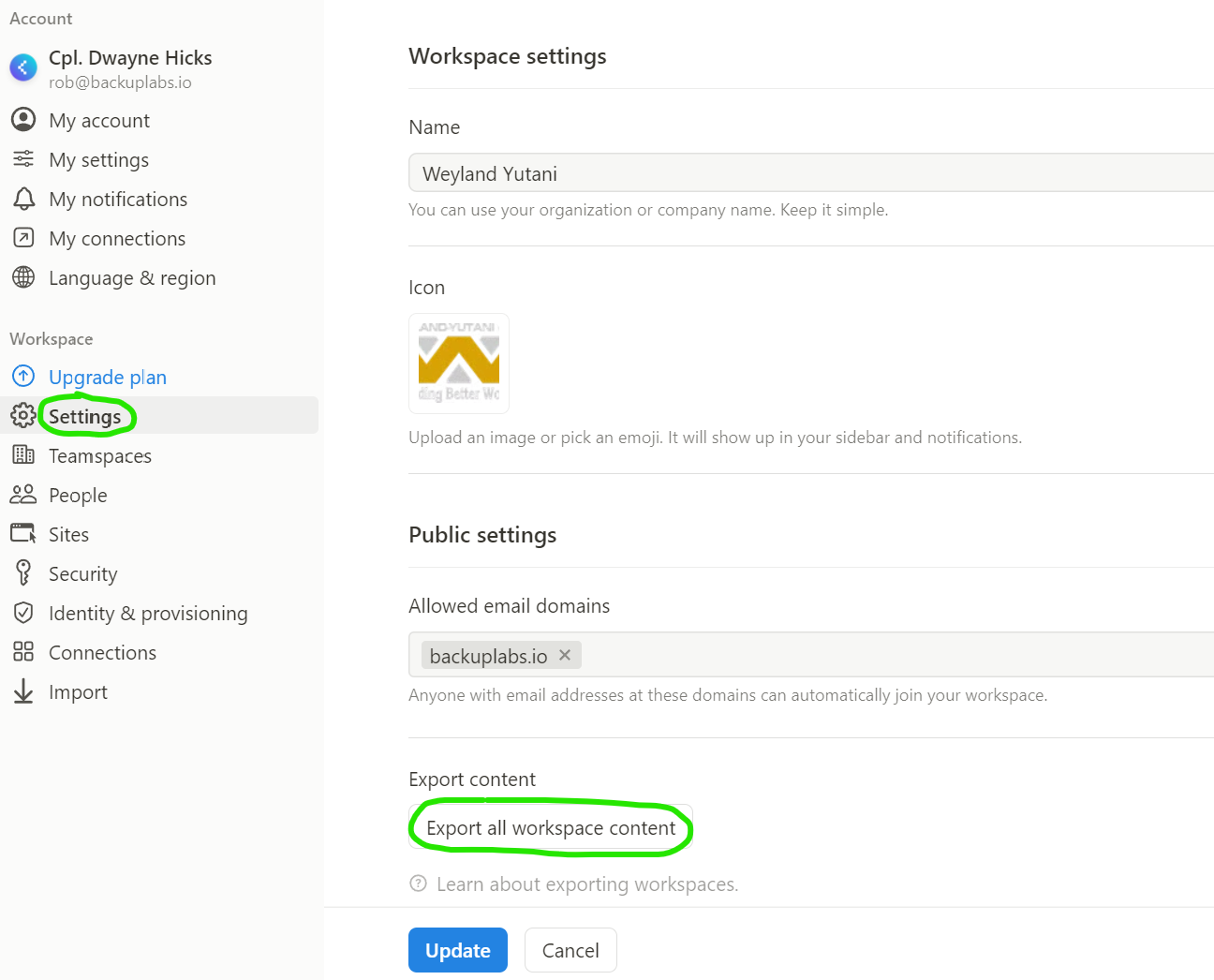
4. Click Export all workspace content.
5. Choose the format you wish to export to (Markdown & CSV, HTML or pdf)
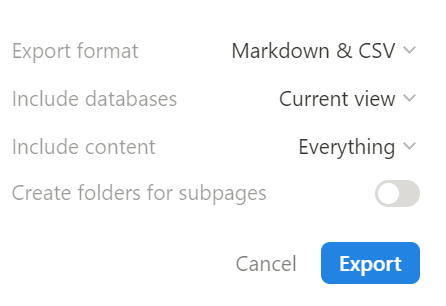
6. Select Export to download your data to your device.
7. You will also receive an email with a link to download your export.
Additional Tips
- Limitations: Keep in mind that some Notion features, such as database properties, may not fully transfer in Markdown format. Review your exported data to ensure everything you need is there.
- Regular Exports: Make it a habit to export your data regularly, especially before major changes or updates in your workspace.
- Restoring: Notion does not yet make it easy to recreate and import data directly back into Notion. There are additional steps that need to be taken to import data.
Automatic Notion Backup
Another method of backing up your Notion data is to use the third-party automatic Notion backup service from BackupLABS. Your Notion data can be encrypted and backed up every day to the BackupLABS secure platform. Backups can also be automatically exported to your own Google Drive for additional protection.
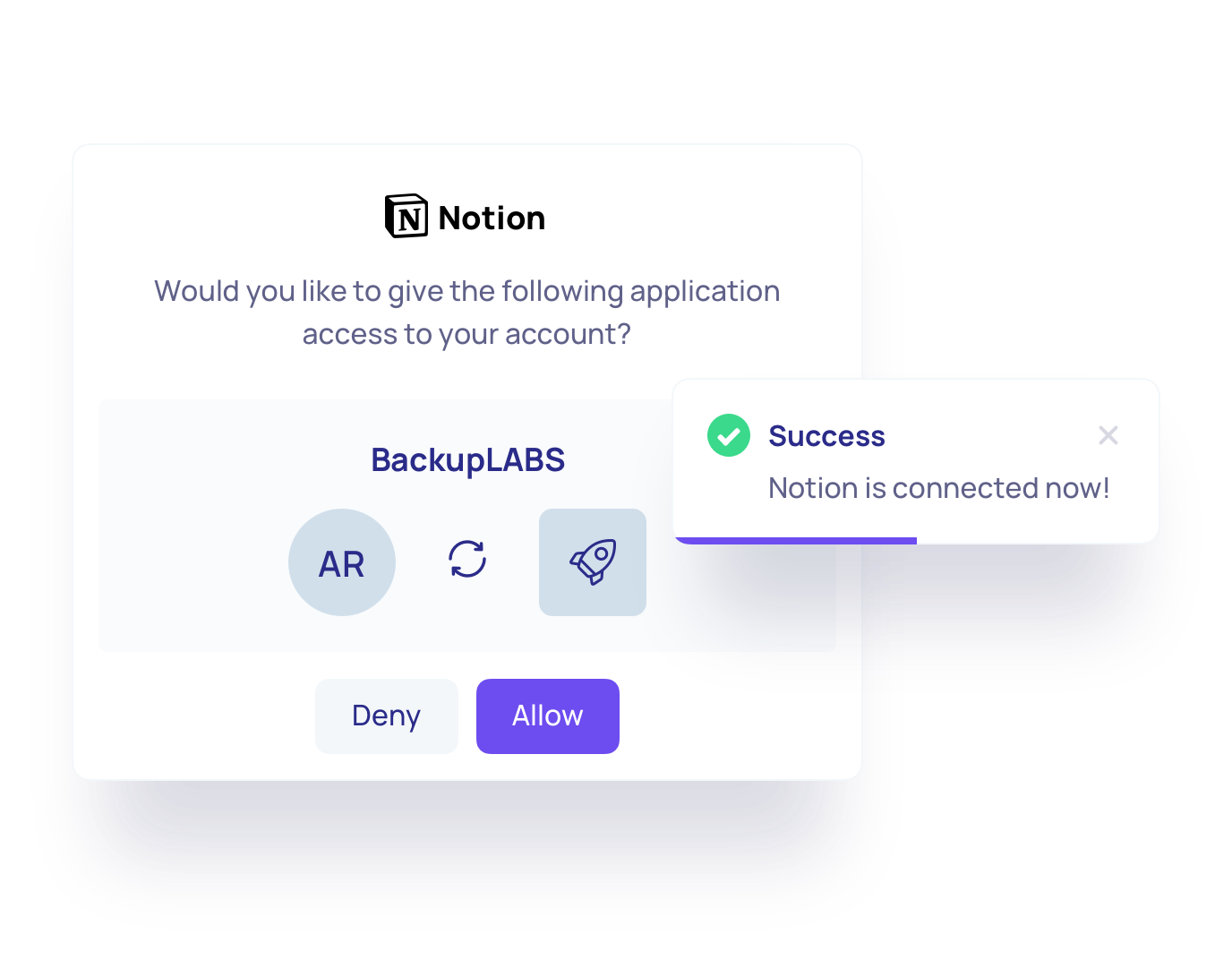
Protect your critical Notion data today with a free 14 day trial of BackupLABS.
Conclusion
Exporting your Notion data is a straightforward process that can save you time and provide peace of mind.
Whether you’re backing up your workspace or transitioning to another tool, following these steps will help you keep your information organized and accessible. Happy Notioning!
Troubleshooting Notion Backup: How to Resolve Page Saving IssuesNotion is a versatile, cloud-based workspace that offers a wide range of tools for collaboration and productivity. It’s a hub where your team can generate and exchange notes, files, databases and project outlines.
But smooth operation and data security are essential for productivity tools like Notion.
Notion guarantees smooth operations through quick loading speeds and a user-friendly interface. These features reduce interruptions for a productive workflow.
Recognising the importance of protecting valuable Notion data, the platform prioritises security measures like encryption, access restrictions, and consistent updates to safeguard confidential information.
Despite the benefits of Notion as a cloud-based workspace, users still face challenges that disrupt their workflow. This guide will focus on issues related to Notion’s ‘save changes’ feature and provide solutions to overcome these setbacks.
Issue #1: Cannot save changes
If you come across the message ‘cannot save changes’, rest assured it’s not due to an error on your part. It simply means there’s an issue preventing your Notion account from saving any changes you’ve made.
Step-by-step solutions
To resolve this issue on the web, desktop, or mobile, take the following steps:
Web platform
- Clear browser cache: To resolve any issues impacting Notion’s ability to save edits, start by clearing your browser’s cache and cookies.
- Reinstall the Notion application: If clearing the cache doesn’t work, reinstall the Notion application to refresh it and fix any underlying issues.
- Switch browsers: If the issue persists, try using alternative web browsers to access Notion, as sometimes problems may be specific to certain browsers.
Desktop platform
- Clear application cache: When using Notion’s desktop application, clearing the browser cache may not be relevant. Instead, try clearing the application cache or data through the application settings.
- Reinstall the Notion application: Like the web platform, reinstalling the Notion application on your desktop can resolve underlying tech problems.
- Using alternative platforms: If the previous steps haven’t worked, access Notion through alternative platforms like the web or mobile application.
Mobile platform
- Clear application cache: Clear the Notion application’s cache and data through the settings on your mobile device to resolve any temporary issues affecting the app’s performance.
- Reinstall the Notion application: Try uninstalling and reinstalling the Notion application on your device if clearing the cache hasn’t resolved the issue.
- Use alternative platforms: If the problem continues, access Notion through alternative platforms like the web or desktop application.
Issue #2: Not syncing across devices
Have you ever worked on a project using multiple devices only to find that some information didn’t update? Notion’s synchronisation is designed to solve this issue through:
- Real-time collaboration: Wherever you might be, your team can collaborate on a shared Notion page at any time. Changes are visible immediately to all team members, encouraging real-time teamwork and removing version control headaches.
- Offline access: Even offline, Notion lets you view and edit your content. Any edits are saved automatically and synced once you’re back online, guaranteeing productivity, even while you’re on the move.
Despite the advantages of Notion’s syncing abilities, sometimes syncing is not possible. Here’s how to tackle this problem:
Troubleshooting sync issues
- Restart and refresh: A simple refresh can sometimes solve Notion syncing issues. Close and reopen the Notion application on all devices, or clear your browser cache if using Notion’s web platform.
- Force a resync: The Copy and sync feature can also be helpful. Right-click a page (desktop) or tap the three dots (mobile) and select Copy to clipboard > Paste and sync.
- App reset: If the problem continues, reset the Notion app on each device to clear any temporary data causing conflicts.
- Reinstall Notion: As a final step, try deleting and reinstalling the Notion app. This is the most disruptive option, but it can resolve stubborn syncing problems.
The role of third-party backup solutions (like BackupLABS)
Cloud services like Notion provide built-in backup features to help protect your data. But these built-in backup features have limitations you need to be aware of, including:
- Limited control over backups and schedules
- Dependence on the service provider for backup management
- Short retention periods for backups
- Data security concerns
To overcome these limitations and ensure your data is always safe, you can combine Notion’s built-in features with a third-party backup solution like BackupLABS.
Advantages of using third-party Notion backups
1. Boosted security and data integrity
Third-party solutions like BackupLABS provide encryption and strong security protocols to safeguard valuable data stored in Notion against corruption and unauthorised entry.
2. Recovery options
If there are any issues with syncing or data corruption, third-party tools offer ways to recover your deleted pages or lost data. This includes features like:
- Version history
- Granular recovery options
- Automated recovery processes
3. Continuous backups
Continuous backups offered by third-party solutions protect against data loss by saving changes to data in real time or at regularly scheduled intervals. This means that even if your primary Notion backup fails, your crucial information is still safe and secure.
4. Customisation and flexibility
You can customise your backup schedules, data retention periods, and storage setups according to your needs.
5. Comprehensive coverage
Third-party backup services support various data sources and platforms – like cloud-based applications and on-premises systems – all from a single platform.
6. Regulatory compliance
Third-party backup solutions aid in regulatory compliance for data protection and privacy by integrating features like encryption, access controls, and audit trails.
Why choose BackupLABS as your Notion backup solution?
BackupLABS offers seamless protection for your Notion workspaces and pages, ensuring they’re backed up within minutes. This guards against common Notion issues, syncing errors, and failed changes saving.
Plus, your Notion workspace content is shielded from threats like human errors, cyber attacks, and natural disasters.
Should any mishaps occur, BackupLABS allows you to effortlessly restore and roll back to specific dates. Rest assured that restoration never overrides your original data, keeping it intact while creating a new instance.
You can connect your Notion workspaces to BackupLABS and schedule automatic backups with a few clicks for complete convenience.
Try BackupLABS for yourself. Sign up for our 14-day free trial.
Can You Recover a Deleted Notion Account?Are you thinking about deleting your Notion account, or have you already taken this step?
Then, you might be wondering about the possibility of reversing the process and recovering your deleted data.
This blog aims to address those concerns. From guiding you through deleting your Notion account to exploring potential recovery methods, we’ll cover everything you need to know to make informed decisions about managing your Notion data.
How to delete a Notion account?
To delete your Notion account, take the following steps:
- Go to Settings & members, then click My Account.
- Scroll down until you see the title Danger Zone and click Delete my account.
- Before your account is deleted, a pop-up will ask if you want to proceed and list any workspaces that will be deleted.
- To continue, enter your account email and click Permanently delete account and workspaces.
What happens when a Notion account is deleted?
When you decide to delete your Notion account, it’s important to understand the finality of this choice.
Your account and all associated data will be permanently removed from Notion’s servers. Notion itself highlights the importance of confirming the deletion with caution.
When you delete an account in Notion, the platform will:
- Delete the account associated with the email address entered
- Delete private workspaces in which you are the only member
- Delete shared workspaces in which you are the only admin
- Remove you from shared workspaces where you’re a member or one of multiple admins.
How to recover Notion data
Standard methods of recovering Notion data include:
Contacting customer support
If you’ve deleted your Notion account and need to recover specific data, there’s a chance you can do so within 30 days by contacting Notion support.
But it’s important to note that this isn’t a guaranteed solution. Data recovery success can vary based on factors like the nature of the data and the timing of the request.
Using data recovery tools
Notion provides built-in tools that can help recover data. These include:
- Trash: When you remove a page or entry in Notion, it’s moved to the Trash bin, where it stays for 30 days. Within this period, you can retrieve deleted pages or entries from the Trash and place them back within your workspace.
- Page history: Notion records all changes made to your pages, allowing you to view edit history. This means you can restore the page to any specific point in its edit history.
The limitations of Notion’s data recovery methods
Although Notion allows you to restore specific pages and reverse changes made within a workspace, recovering a completely deleted account is generally impossible once the deletion process is completed.
These limitations are most apparent in circumstances including:
Migrating content to a different workspace
Notion lacks a direct feature for transferring entire workspaces. While you can move pages or databases manually by copying and pasting or using the export/import function, this method doesn’t always smoothly transfer permissions and integrations across workspaces.
This means that without paying attention to specifics, data or important components can be lost during the switch.
Accidental deletions
Accidentally removing pages or databases from Notion can cause issues due to the platform’s limited recovery capabilities. Once items are permanently deleted from the Trash bin after 30 days, Notion’s built-in tools cannot recover them.
How to prevent Notion data loss
Protecting your Notion data is crucial for staying productive and avoiding data loss. Below are steps you can take to secure your information and reduce the chances of losing valuable data.
1. Regular backups
Periodically export your workspace data manually to rest assured the backup is stored securely outside Notion.
2. Automated backup solutions (like BackupLABS)
Think about using an automated backup solution like BackupLABS’ automated Notion backup service to guarantee that your data is routinely and securely backed up without manual intervention.
3. Consistent log-in method
Always use the same log-in method on all your devices and platforms when accessing Notion or creating a new workspace. When you use multiple login details, you run the risk of data discrepancies or losing access to workspaces.
4. Provide education and training
Offer training and support to all Notion users in your organisation so that everyone understands the ins and outs of handling data safely and responsibly.
5. Carry out audits
Regularly check your Notion workspaces for any duplicated content and remove unnecessary data to streamline your workspace and reduce the risk of data loss.
6. Version control
Use Notion’s built-in version history feature to track changes made to your pages and revert to previous versions if necessary.
7. Collaboration best practices
Set up communication and collaboration guidelines within your team to reduce the chances of unintended data clashes or loss while editing.
Why use BackupLABS as your backup solution?
BackupLABS offers a reliable and comprehensive cloud backup solution for Notion databases, equipped with top-notch security features and excellent customer support.
We provide a complete cloud backup solution with the following capabilities:
- User-friendly interface: Our system is crafted for simplicity and user-friendliness, guaranteeing a smooth experience for all users.
- On-demand backups: You can start account-level backups whenever you want without any limitations. Additionally, our service allows you to create a disk image backup, ensuring that your entire Notion workspace can be easily recovered whenever needed.
- Revision history preservation: Each backup keeps a complete revision history of every file so you can easily keep track of changes.
- Ownership assurance: You can download copies of your backups whenever you like for guaranteed data ownership.
- Instant bulk restores: Recover multiple files from your cloud storage backup archive quickly and easily.
- Instant cloning: Quickly create clones during the restoration process for added flexibility.
- Responsive customer support: Our support team can assist you with any queries or issues.
- Security alerts and notifications: Stay informed with timely security alerts to keep your data safe.
Try BackupLABS for yourself. Sign up for our 14-day free trial.
Exploring Notion’s Security Measures: How Safe Is Your Data?Notion is your trusty companion for workspace and knowledge management. This flexible platform allows you to organise tasks, take notes, and track project progress.
If your organisation is currently using Notion or plans to do so, it’s vital to ensure that the valuable data stored on the platform is safely secured at all times.
Without proper security measures, your critical information is vulnerable to threats like data breaches, data loss, and legal issues.
This guide provides insights into Notion’s security measures for safeguarding your data. We’ll look at the platform’s security infrastructure, common user security mistakes, and offer guidance on best practices for securing your data.
Notion’s security infrastructure
Notion takes a ‘security-by-design’ approach to protect your organisation’s notes, tasks, wikis, and databases.
The components of security-by-design are:
- Security infrastructure: Notion features robust security measures to safeguard your data during transmission, storage, and processing. These protective measures include encryption, restricted access privileges, and secure software development practices.
- Operational security: The Notion security team closely monitors the platform’s systems and networks to detect suspicious activities.
- Product security: Notion offers strong product data protection and admin controls for greater visibility and control of critical information.
Common security mistakes in Notion
Not setting up two-factor authentication (2FA)
When logging into Notion, many users enter their email and password or opt for the ‘Sign in with Google’ option provided.
While these methods are convenient, they don’t offer sufficient security. If hackers infiltrate your Notion email account, they could potentially gain entry into your Notion workspace.
To prevent this, enabling two-factor authentication (2FA) is important. Here’s how:
Go to Settings & members and click My Account under the Accounts section.
There, you’ll find the 2-step verification option. Toggle it on, and you’ll have 2 options:
- Code from authenticator
- Text me a code
Storing sensitive information
While Notion is a powerful platform with many benefits, it wasn’t designed to store highly sensitive organisational data.
Saving confidential information like passwords, financial data, or personal identification numbers (PINs) on Notion can expose it to various security risks.
Carelessly managing user permissions
Failing to carefully manage user permissions within Notion is another common security mistake. Unfortunately, this error can lead to unauthorised access to sensitive company data.
At the same time, integrating Notion with external apps or services without thoroughly vetting their security features can compromise the integrity of your workspace.
Clicking on unidentified links
Phishing scams are rising, and cybercriminals are tricking unsuspecting Notion users into thinking their links are from real companies.
They send seemingly legitimate emails. But once you click on attached links or share personal details, hackers gain unauthorised access to your data.
It’s best to avoid clicking on email links unless you’re completely confident they’re safe. If you don’t need to click the link, it’s better to skip it altogether. This also applies to links in Notion Workspace Invitations.
Step-by-step guide to securing Notion
Notion’s security features have limitations, including:
- Lack of end-to-end encryption: Notion data lacks end-to-end encryption, compromising transmission security.
- Insider threats: Authorised users may compromise data security inadvertently or deliberately.
- Phishing: Despite Notion’s security measures, users are vulnerable to phishing attacks.
To boost your workspace’s security, take the following steps:
Review access and permissions
Periodically review and audit the access and permissions granted to users in your workspace account settings.
- Click on your workspace name > Settings & Members.
Look through the list of members and their roles or permissions, including who has full access to private pages.
Make any necessary changes and save.
Use enterprise features
Enterprise features in Notion include Single Sign-On (SSO) integration, advanced access controls, and data encryption – all of which support security, compliance, and collaboration.
To embrace enterprise features:
- Look into Notion’s enterprise-level features for security and collaboration.
- Evaluate various features to determine which best suits your needs, preferences, and budget.
- Reach out to Notion support for help implementing tailored features.
Restrict guest access
Disable the option for guests to join your workspace. This prevents anyone from inviting people outside the workspace to view pages.
- Click on your workspace name.
- Choose Settings & Members and go to the Members tab.
- Turn off the option for guests.
Remember, even if guests are turned off, workspace owners can still allow specific members to invite guests for more controlled access.
Backup Notion data
The easiest way to secure your Notion workspace content is through regular data backups. While Notion offers backup abilities, it’s essential to be aware of its limitations. These include restricted frequency options, incomplete data coverage, and limited restore options.
To overcome these setbacks, you can opt for a third-party backup solution like BackupLABS and enjoy greater flexibility and reliability.
Here’s how to use BackupLABS in 4 simple steps:
- Create a BackupLABS account.
- Authorise your Notion account with us.
- Add as many of your Notion pages, or your entire workspace.
- Restore and access your backups at any time. You can also download the archive to your computer for ownership.
Compliance and regulatory considerations
Notion adherence to industry norms like SOC 2 Type II and ISO certifications gives users confidence in its dedication to security practices. Although these certifications are essential for building trust, it’s important to recognise that they do not guarantee security.
Compliance and audits play a role in enhancing security. But keep in mind, continuous monitoring and proactive actions are necessary to effectively mitigate evolving threats.
Best practices for Notion security management
Here are some best practices for businesses to manage security effectively within Notion:
- Set up detailed access controls: Use Notion’s access management tools to designate roles and permissions according to user duties. Restrict the availability of data to individuals who actually need it. Assess and adjust permissions as necessary.
- Conduct regular security audits: Conduct security audits to see how well your security measures are working. Prioritise identifying vulnerabilities, reviewing access logs, and ensuring compliance with security policies.
- Monitor user actions: Stay informed about user interactions on Notion by examining access records and monitoring behaviours. Take action upon noticing any activity or unauthorised attempts to access the system.
- Security awareness: Make sure users are well informed about security measures. Establish user training programs to increase awareness of phishing scams, password best practices, and safeguarding data.
Choose BackupLABS as your Notion backup solution
BackupLABS allows you to mitigate the security risks associated with Notion to prevent data loss and enjoy uninterrupted access to critical information.
Discover the benefits of BackupLABS for your automated Notion database backup needs and experience unparalleled convenience and security.
- Effortless backup: Our user-friendly interface allows you to backup and restore your Notion data with a few clicks, without coding or scripting.
- Rapid Setup: Secure your Notion workspaces and multiple files in under 5 minutes, guaranteeing minimal disruptions to your workflow.
- Data compliance: Keep accurate and easily accessible records of your Notion data history, compliant with current regulations and standards.
- Robust encryption: Your data is safeguarded with 256-bit AES encryption during transfer and storage, providing top-tier security.
- Ransomware defence: Shield your data from malicious attacks, ransomware, and potential breaches, safeguarding your crucial information.
Try BackupLABS’ cloud storage solution for yourself. Sign up for our 14-day free trial.
Notion Productivity: How to Export Notion Content with EaseNotion, the Swiss Army knife of productivity tools, is your go-to platform for everything from note-taking to project management. But what happens when you need to share your meticulously organised data with others, or simply ensure it’s safely backed up?
In this guide, we’ll walk you through the simple process of exporting your Notion content, helping you take control of your data and ensure it’s accessible whenever and wherever you need it.
Exporting individual Notion pages
Exporting a single Notion page can come in handy when you need to share specific information or back up important notes.
Whether it’s a brainstorming session, meeting minutes, or specific data you need for a business or enterprise plan, having the ability to export individual pages ensures you can easily share, separate, or safeguard your valuable content.
Here’s how to carry out a single-page Notion export:
- Navigate to the page you wish to export.
- Click on the three-dot menu at the top-right corner of the page and click Export.
- Choose from a range of formats including PDF, HTML, Markdown, or even Word.
- Follow the prompts to download your exported file.
Exporting entire workspaces or databases
Sometimes, you need to export more than just a single page — perhaps to migrate an entire project or share an extensive Notion database with collaborators.
In such cases, exporting entire workspaces or databases becomes essential, allowing you to maintain the structure and hierarchy of your content while ensuring all relevant information is transferred seamlessly.
If you need to export a larger set of pages, or even an entire database, here’s how:
- Head to Workspace settings to initiate the export process.
- Select the desired format for your export file, whether it’s PDF, HTML, Markdown, or CSV.
- Once the export is complete, download the file to your device for safekeeping or sharing.
Tip: When exporting Notion pages, it’s important to keep your files organised and manageable. For extensive workspaces or full-page databases, you can export Notion pages in a more controlled manner by compressing your exports into a zip file before downloading. This keeps your data neat and tidy, making it easier to share with collaborators or store securely for future data analysis.
Advanced exporting via API
Notion’s API opens up a world of possibilities when it comes to data exports for those with coding knowledge and customisation experience.
By tapping into the API, you can customise the export process to meet your individual needs, whether it’s extracting data for analysis, integrating with other tools, or automating complex workflows.
Essentially, the API enables you to take full control of your data and export a Notion page in a way that aligns perfectly with your preferred way of working.
But, before diving into advanced exporting, we recommend that you:
- Evaluate your understanding of programming and API integration
- Understand your specific export requirements and objectives
- Review Notion’s API documentation thoroughly to grasp its capabilities and limitations
- Experiment with small-scale API integrations to gain practical experience
- Consider seeking guidance from experienced developers or online communities for additional support and insights
Export format options
Notion offers a variety of export options to cater to different preferences and use cases.
Whether you prefer the versatility of PDF, the simplicity of HTML, or the flexibility of Markdown and Comma Separated Values (CSV) files, there’s a format to suit every need.
Each option also comes with its own set of features and customisation settings, allowing you to fine-tune your exports according to your requirements.
Explore the different export formats offered by Notion to find the one that best suits your needs:
- PDF: Customise your export to include databases and subpages, adjust page format, and scale to your preference.
- HTML: Enjoy the simplicity of HTML exports, with a zipped file containing HTML and images for easy sharing.
- Markdown & CSV: Get formatted Markdown pages along with a CSV file of your database content, perfect for further analysis or sharing.
Tip: When it comes to a Notion page export, Notion table data can be efficiently handled using the Markdown & CSV format. A simple copy and paste may not work due to the differences in markdown between Notion and Excel, so it’s advised to follow Notion export instructions for best results.
Backing up Notion with BackupLABS
Now that you’ve mastered the art of exporting Notion content, it’s time to keep your data secure with a Notion backup.
With BackupLABS, you can protect your valuable Notion workspaces and pages automatically. Scheduled backups and straightforward data restoration give you complete peace of mind over the safety, security, and accessibility of your data.
Our seamless integration with Notion means your Notion workspaces and pages are safeguarded against any unforeseen events, helping you maintain uninterrupted productivity and collaboration.
Here are just some of the features BackupLABS users love:
- Automated backups: BackupLABS allows you to automate the backup process, keeping your workspace and pages regularly backed up without manual intervention. This automated approach minimises the risk of data loss due to human error or unforeseen circumstances.
- Secure storage: With BackupLABS, your data backups are stored securely in the cloud, protected by encryption and other advanced security measures. This safeguards your data from unauthorised access and potential threats, while ensuring easy access for authorised users.
- Simple restoration: In the event of data loss or corruption, BackupLABS makes it easy to restore your backups with just a few clicks. Whether you need to recover a single page or an entire workspace, the restoration process is quick and hassle-free.
- Version history: BackupLABS maintains a comprehensive version history of your backups, allowing you to roll back to a previous state if needed. This feature provides added peace of mind, knowing that you can always revert to a previous version of your data if necessary.
- Cross-platform compatibility: Whether you’re using Windows, macOS, iOS, or Android, BackupLABS ensures cross-platform compatibility, allowing you to seamlessly backup and restore your data across all your devices.
Take control of your Notion data today. Visit BackupLABS now to learn more, or sign up for our 14-day free trial.
Notion Data Migration: Everything You Need to KnowWhether you’re planning a move to Notion’s versatile workspace platform, transitioning from Notion to a new environment, or moving data within Notion, the process takes careful steps.
Data loss is always a real threat when moving critical Notion information. It can lead to significant setbacks like disturbed workflows, costly delays, and the loss of critical business information.
Fortunately, with the right knowledge and guidance, you can confidently handle the Notion migration process, while keeping your information safe.
This guide to Notion migration will give you all the information you need when moving your systems to, from, and within the workspace platform.
How to migrate content away from Notion
There are many reasons you might consider leaving Notion. You may be looking for advanced features, a change of location, or a platform that matches new organisational methods.
Whatever your reason for the switch, the steps you need to take are the same. Here’s everything you need to know:
Export your entire Notion workspace as an HTML
- Navigate to Settings & Members in your sidebar and click on Settings.
- Select Export all workspace content.
- A new window will pop up with export options. Click HTML to download your content.
- Check your email for a message from Notion with the zip link attached. Click on this to download your HTML files.
- Talk to your new project management software provider for instructions on how to import your exported Notion workspace.
How to move a Notion page to another account
You can efficiently transfer specific pages to a separate Notion account with the following steps:
- Share the page with the target Notion account, granting Full access to the associated email.
- Log into the receiving account and access the shared page.
- Use the Move to option to organise the page within the new workspace.
How to migrate to Notion
Notion offers a versatile platform for managing projects, notes, and data in one place, making it ideal for streamlining workflows and enhancing collaboration.
Here’s your step-by-step guide to seamlessly transitioning from your previous platform to Notion.
1. Gather data
Export documents as PDFs and spreadsheets as CSV files from various platforms.
2. Check compatibility
Check compatibility with Notion and make necessary adjustments for importing.
3. Set up the initial layout
Create an initial layout in Notion based on your team’s workflow needs, using templates if helpful.
4. Organise content
Arrange exported content into pages, databases, and other blocks within Notion.
5. Import content
Import exported files into Notion and organise them within your created structure.
6. Customise content
Use Notion’s tools to customise imported content – from setting up database properties to adjusting page templates – to meet your specific requirements.
Using BackupLABS to safely back up your Notion data
By securely backing up your Notion data with a third-party cloud backup service like BackupLABS, you can be confident that your important data is always safe and protected.
You can avoid accidental data loss during the transfer by backing up your data before the migration.
Phased migrations
If you’re a larger organisation, a phased migration is a way to migrate your data while significantly reducing disruptions to your operations.
By moving data and users to the new environment in stages, the transition can be simpler and smoother for everyone involved.
BackupLABS offers features that make migration easier, including:
- Incremental backups: BackupLABS can create incremental backups that only include the modifications made to your data since the last backup. This means your data is always up-to-date, even during phased migrations when changes are gradual.
- Flexible scheduling: With BackupLABS, you can arrange backups at set intervals, allowing you to coordinate the backup process at various stages of your migration.
- Point-in-Time Recovery (PITR): BackupLABS has options for PITR, which means you can restore your data from any point in the backup history.
- Cross-platform compatibility: BackupLABS supports a wide range of platforms and data types, so you can easily back up and migrate data from various sources.
Why choose BackupLABS for your Notion backups?
Discover the benefits of BackupLABS for your automated Notion database backup needs and experience unparalleled convenience and security.
- Effortless backup: Our user-friendly interface allows you to schedule automatic backups for your Notion data and to restore it with a few clicks, without coding or scripting.
- Rapid setup: Secure your Notion workspaces and multiple files in under 5 minutes, guaranteeing minimal disruptions to your workflow.
- Data compliance: Keep accurate and easily accessible records of your Notion data history, compliant with current regulations and standards.
- Robust encryption: Your data is safeguarded with 256-bit AES encryption during transfer and storage, providing top-tier security.
- Ransomware defence: Shield your data from malicious attacks, ransomware, and potential breaches, safeguarding your crucial information.
- 24/7 customer support: Our dedicated and friendly support team is available round-the-clock to assist you with any issues for seamless Notion data backup.
- Daily progress reports: Stay updated with access to daily reports on the status of your data backup, offering peace of mind and transparency in data protection.
Try BackupLABS’ Notion backup service for yourself. Sign up for our 14-day free trial.
Introducing BackupLABS’ Notion BackupBackupLABS is excited to announce our new backup solution, which we’ve developed just for Notion. With this service, businesses can securely backup and protect valuable data stored within their Notion databases.
Expanding on our existing backup solution for Atlassian Trello and Jira, as well as other SaaS applications like GitHub, GitLab, our Notion Backup represents a significant addition to our suite of offerings.
Notion has become the go-to platform for countless organisations, centralising everything from project plans to brainstorming sessions.
But what happens when a critical document vanishes from Notion, or a cyberattack strikes? Data loss can be a major setback for any organisation.
BackupLABS allows you to mitigate the risks associated with data loss and enjoy uninterrupted access to critical information.
Here, we’ll explain why organisations should back up their Notion data and highlight key features of BackupLABS’ new service.
Why is it important for organisations to backup their Notion data?
Organisations should backup their crucial data for several reasons:
- Data loss prevention: Whether it’s a hardware failure, a human error, or a malicious action by an employee, accidents and data loss can happen to anyone. With safe and secure storage space on the cloud, you can recover data without significant disruption to operations.
- Business continuity: Data backups are essential for maintaining business continuity in the face of unexpected events. Whether it’s a natural disaster or a security breach, having backup data allows organisations to quickly resume operations and minimise downtime.
- Compliance and regulatory requirements: Many industries have strict compliance regulations regarding data protection and retention. Regular data backups help you meet these requirements and avoid potential legal consequences.
- Protection against cyber threats: With the rise of ransomware and malware, organisations risk having their data compromised or held hostage. Backing up data provides protection against these threats, allowing organisations to restore clean copies of their data if necessary.
- Preservation of intellectual property: Data often represents valuable intellectual property, including proprietary information, research, and customer data. Backing up this data keeps it secure and accessible, preserving the organisation’s intellectual assets.
Features of BackupLABS’ Notion Backup Service
Comprehensive backups
Fear of data loss shouldn’t hinder Notion workflows. BackupLABS makes it easy for organisations to safeguard critical databases and workspaces.
With BackupLABS, users can effortlessly back up and restore data stored within Notion, including:
- Text-based documents
- Media files
- Tables
- Tasks and to-dos
- Calendars
- Hyperlinks
- Embedded content
- Form responses
- Code snippets
- Custom properties
Protecting this critical information with automated backups provides the peace of mind of knowing your data is always secure.
Unparalleled security
The Notion Backup Service from BackupLABS prioritises the complete security of valuable customer data.
Information is meticulously encoded using industry-standard 256-bit AES encryption, rendering it virtually unreadable for those without authorised access. This file encryption guarantees the confidentiality of your data at all times.
At the same time, data is stored on secure AWS servers, leveraging their advanced security features to provide additional protection against potential breaches and data loss.
Flexible data residency
BackupLABS recognises that every organisation has unique data residency preferences and compliance requirements. That’s why our Notion Backup solution offers multiple location options, including locations in the UK, EU, and US.
Whether adhering to GDPR regulations in Europe or HIPAA in the US, the service allows data storage in a location that perfectly aligns with organisational needs.
This flexibility empowers organisations to choose the data residency option best suited for them, ensuring compliance and peace of mind.
Supporting the Shared Responsibility Method
Notion provides a powerful and flexible platform for managing team knowledge. But, under the Shared Responsibility Model, the responsibility falls on organisations to backup their own data within Notion.
So, while Notion guarantees platform security, they don’t handle individual database backups. This is where BackupLABS empowers organisations to fulfil their data protection responsibilities.
We go beyond Notion’s native functionality, regularly backing up critical Notion databases so our customers’ information is always protected against accidental deletion or other unforeseeable events.
The bottom line
BackupLABS’ new backup solution for Notion databases offers organisations a reliable way to protect their valuable data.
With BackupLABS’ SaaS data protection solutions, you can count on uninterrupted access to critical information, mitigate the risks associated with data loss, and comply with regulatory requirements.
By offering comprehensive backups, unparalleled security measures, flexible data residency options, and support for the Shared Responsibility Model, BackupLABS empowers organisations to protect their Notion data effectively.
Why use BackupLABS as your backup solution?
With BackupLABS, users can enjoy a reliable and feature-rich cloud backup solution for Notion databases with robust security and access to excellent customer support.
BackupLABS offers a comprehensive cloud backup solution with the following features:
- User-friendly interface: Our platform is designed for unmatched simplicity and ease of use, ensuring a smooth experience.
- On-demand backups: You can initiate account-level backups at any time – with no restrictions. Plus, our service offers the option for a full disk image backup, making sure that your entire Notion workspace is readily available for recovery whenever necessary.
- Revision history preservation: Each backup maintains a complete revision history, allowing you to track changes effectively.
- Ownership assurance: You can download copies at your convenience, guaranteeing ownership of your data.
- Instant bulk restores: Recover multiple files from your cloud storage backup archive quickly and easily.
- Instant cloning: Quickly create clones during the restoration process for added flexibility.
- Responsive customer support: Our support team can assist you with any queries or issues.
- Security alerts and notifications: Stay informed with timely security alerts to keep your data safe.
Try BackupLABS for yourself. Sign up for our 14-day free trial.
How to Backup JiraIf you need a versatile project and issue-tracking software, Jira is your go-to solution.
This powerful tool helps you bug track, manage tasks, customise workflows, oversee campaigns, and keep an eye on your project’s progress.
But it’s equally important to keep all of your important project data safe. That’s where understanding Jira backups comes in.
In this blog, we’ll walk you through the risks of not backing up Jira, compare manual and third-party backup options, and introduce you to BackupLABS’ automated cloud backup service.
Why is it important to back up your Jira data?
Imagine you’re in the middle of launching a new feature or product, and then, suddenly, your Jira server data is gone, misplaced or replaced.
Just one human error, natural disaster, or computer virus could lead to losing all your Jira projects.
It’s crucial to back up your Jira data because it’s your safety net against unexpected disasters.
Without proper backups, the data recovery process could stretch for weeks or even months, causing major delays, financial loss and potential setbacks to your business.
In addition Atlassian Jira also stipulate that you are responsible for protecting your data in the form of the Shared Responsibility Model. Simply put: Atlassian take care of the network connectivity and server hardware, you are responsible for your own data.
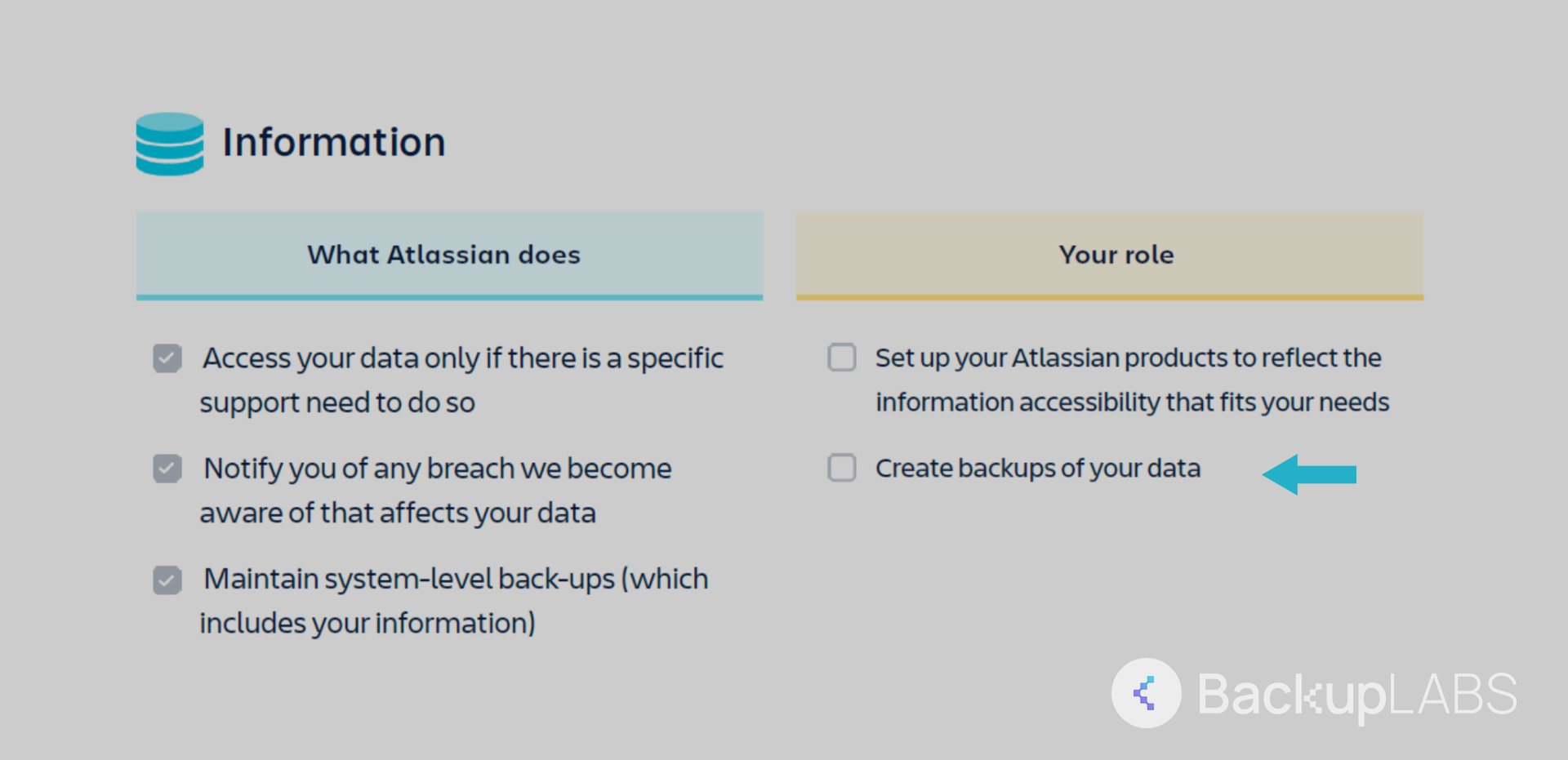
The risks of not backing up your Jira data
- Data loss: Any unexpected issue or disaster can lead to permanent data loss
- Project disruption and operational downtime: Data recovery can be time-consuming, leading to project delays and operational downtime, affecting productivity
- Financial consequences: Data loss can result in financial losses, including rework costs
- Reputation damage: Failure to recover data can harm your reputation with clients and stakeholders
- Regulatory compliance issues: Neglecting to back up sensitive data may lead to legal compliance violations
- Loss of historical data: Historical project data and trends may be irretrievable
- Customer satisfaction: Clients and customers may be dissatisfied with disrupted services
How to backup your Jira data
There are a few methods for backing up your Jira projects. Some manual and some automated. Let’s take a closer look at these options:
Method 1: Manual Jira Export and download
Carrying out a manual backup of your Jira project is a simple but time costly process using Jira’s built-in export feature. You will have a tangible format to which you can archive and manage your backup.
Here’s a step-by-step guide to performing a manual backup in Jira:
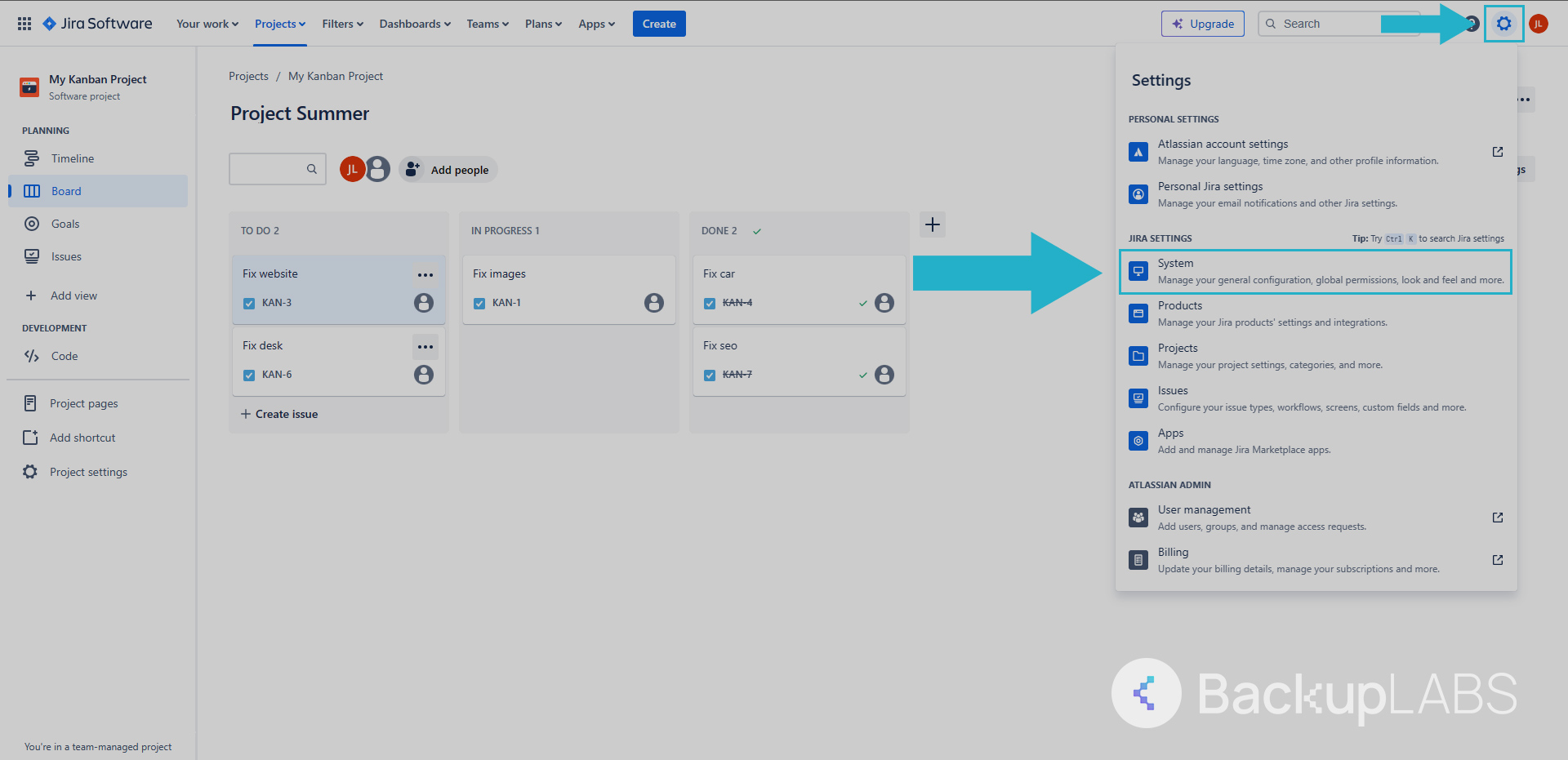
- In the top right, select the COG. Then select System

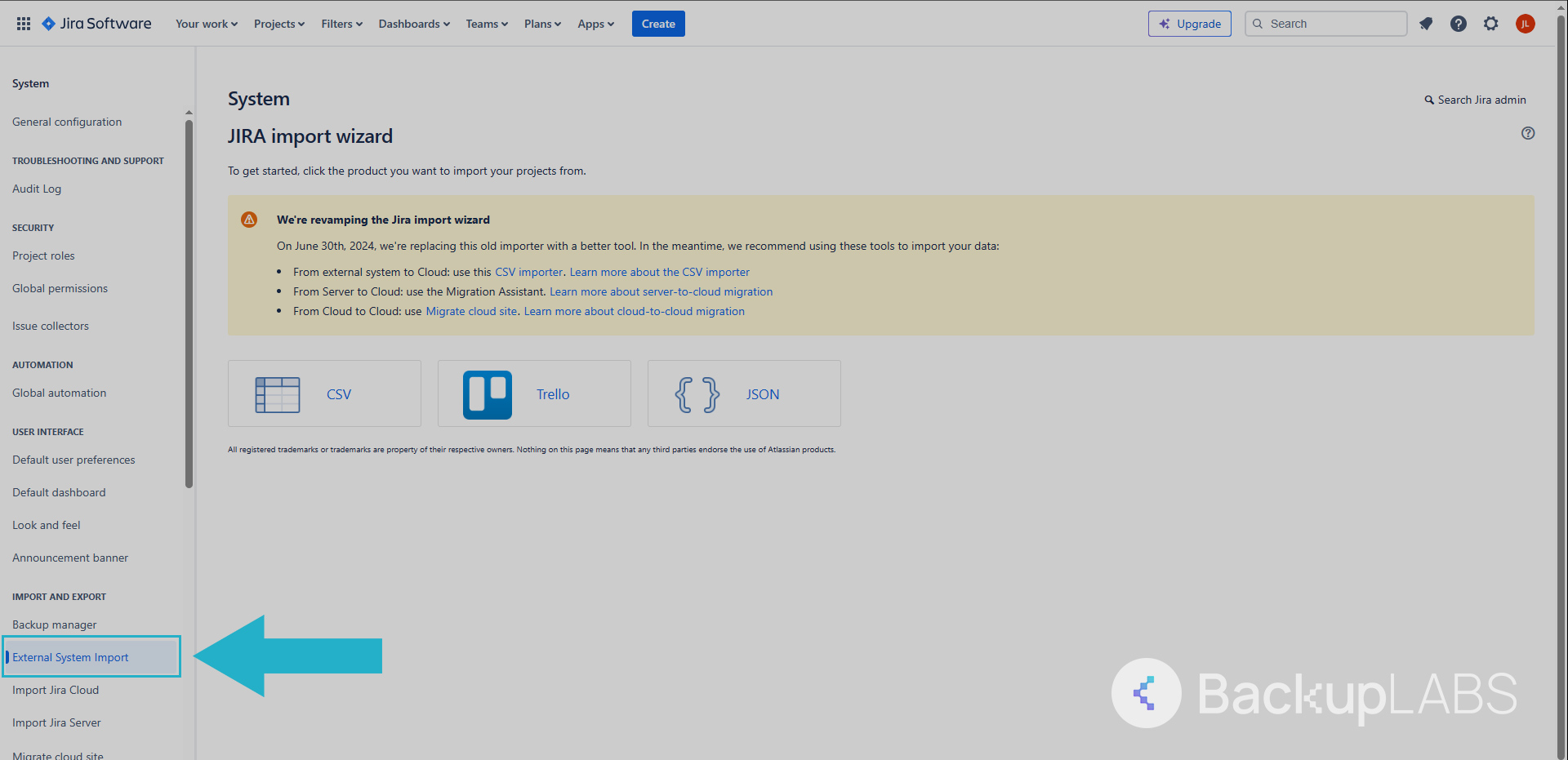
- Under System on the left hand menu, scroll down to IMPORT AND EXPORT and select External System Import
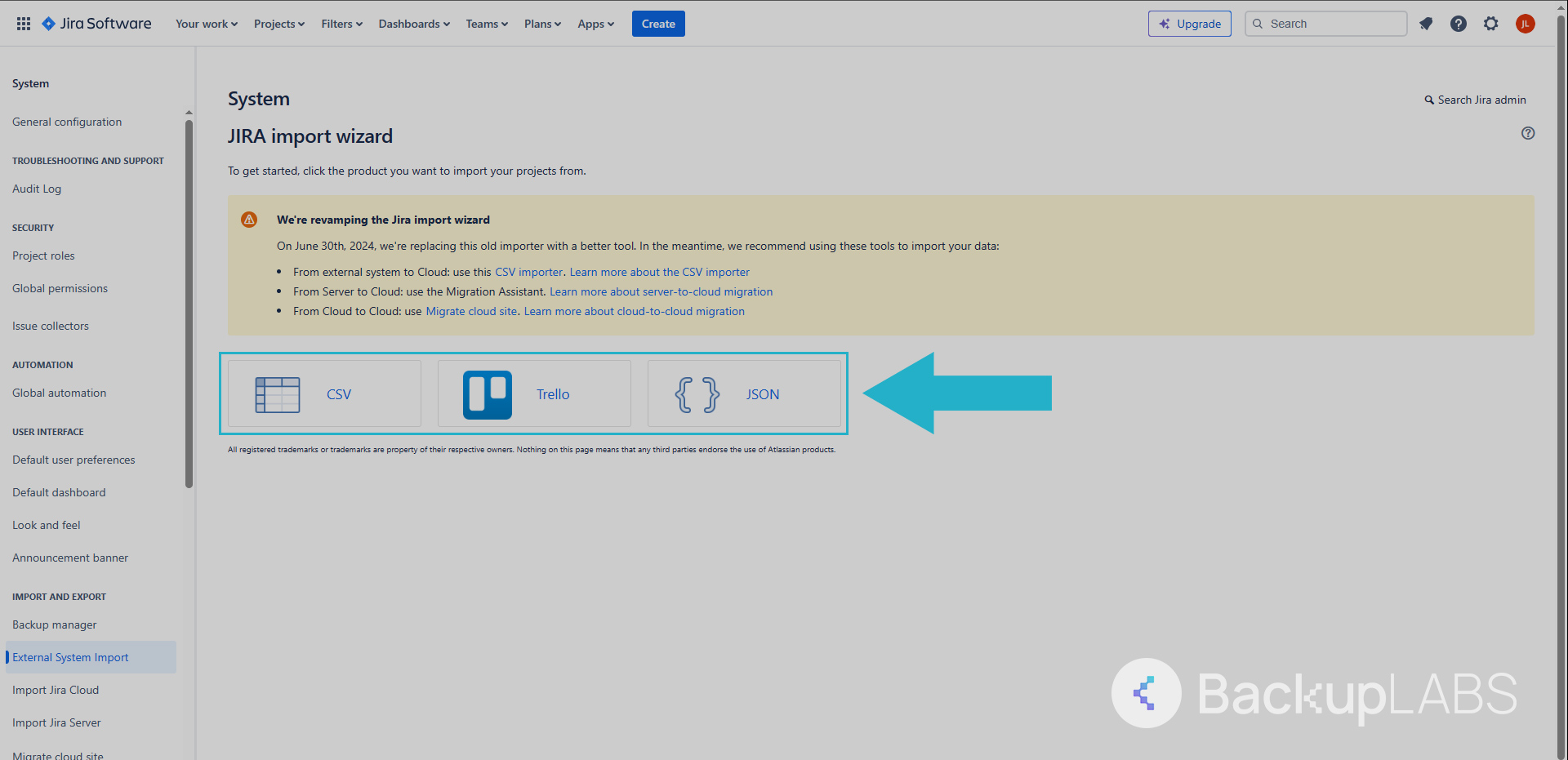
- Download your backup in either a CSV or JSON format
Pros:
- Control: You decide when to do your backups
- Ownership: Your backups are yours
- Cost-effective: It’s free
- Compatibility: Works with Jira Product Service, Work Management, Service Management projects
Cons:
- Labor-intensive: Requires manual effort managing your backups regularly
- Human error risk: Vulnerable to mistakes during manual management of files
- No automation: Lacks any automation
- Simplicity: While this method may interest the hobbyist, companies will find this unfavourable as it is less suitable for complex setups
- Unclear metadata: Can you guarantee that your backups are fully comprehensive
Method 2: Automated script using Base64
Jira offers automations to those who can code it themselves, however there’s a list of concerns as to the quality and reliability of this method.
- Your access token is required to start. You can create one here:
https://id.atlassian.com/manage-profile/security/api-tokens. - Open Base64 here:
https://emn178.github.io/online-tools/base64_encode.html. Then enter your details and save the output using:
[code]

"{your email}:{your token}"

[/code] - Schedule your automations with Jira here:
https://www.atlassian.com/software/jira/features/automation. From here, create your Scheduled Trigger and then your cron job. Note: The most frequent backup can only occur every 48 hours using this method. This is set by Jira themselves. - Create the action Send web request. From here enter your details and remember to replace your yoursitename and yourtoken.
Pros:
- Automation: Create your own cron jobs and schedule your backups from there
- It’s free: No cost or subscription is involved
Cons:
- Management: While this method is automated, you’re responsible for downloading the backups manually
- Automation: Your backups are slow at 48 hour intervals, which will cause issue if you require comprehensive backups
- Time sensitive and expirations: The backups created expire after 14 days
- Coding experience: Manual setup and knowledge of coding is required to set this up and manage on going
Method 3: Windows/Linux server scripted backups
This Jira backup solution allows you to manage and run your own automation via your own hosting using customised scripts.
The steps below are for Windows specifically, but you can adapt it for Linux using a Python script: https://bitbucket.org/atlassianlabs/automatic-cloud-backup/src/master
- Download Atlassian’s official script here:
https://bitbucket.org/atlassianlabs/automatic-cloud-backup/src/master/backup-jira-api-token.ps1 - Create your token here:
https://id.atlassian.com/manage-profile/security/api-tokens - You then need to edit the script to make it your own
- On line 2, replace the example with your website name, examplesite
- On line 3, replace with your email
- On line 4, replace with your generated token
- On line 5, replace with your backup directory, ie. C:\Users\Atlassian Backup Script
- On line 6, optionally replace the value, true to enable attachments
- On line 7, this is optional also
- Create a new scheduled task inside Windows on your server or computer inside Windows Task Scheduler
- Create a cron job
Note: The fastest frequency is 48 hours. This is set by Jira themselves - Create a new action in Actions
- Run Powershell
- Enter your script address in Arguments
Pros:
- Server costs: Your responsible for managing and running as the host
- Customisation: Adapt the existing script to your needs
- No subscriptions: No additional costs for this method
Cons:
- Infrequent backups: Your backups are scheduled to 48 hours at the earliest due to Jira’s policies
- Dependencies: As host, you must be connected to Atlassian at all times
- Maintenance: The scripts provided may change you’re responsible to make sure they still work
- Coding skills: You need adequate computer knowledge to run the scripts and execute them
Method 4: BackupLABS – Automated Jira backups
BackupLABS provides a unique approach to backing up your Jira projects that’s both seamless and comprehensive. No skill or coding is required.
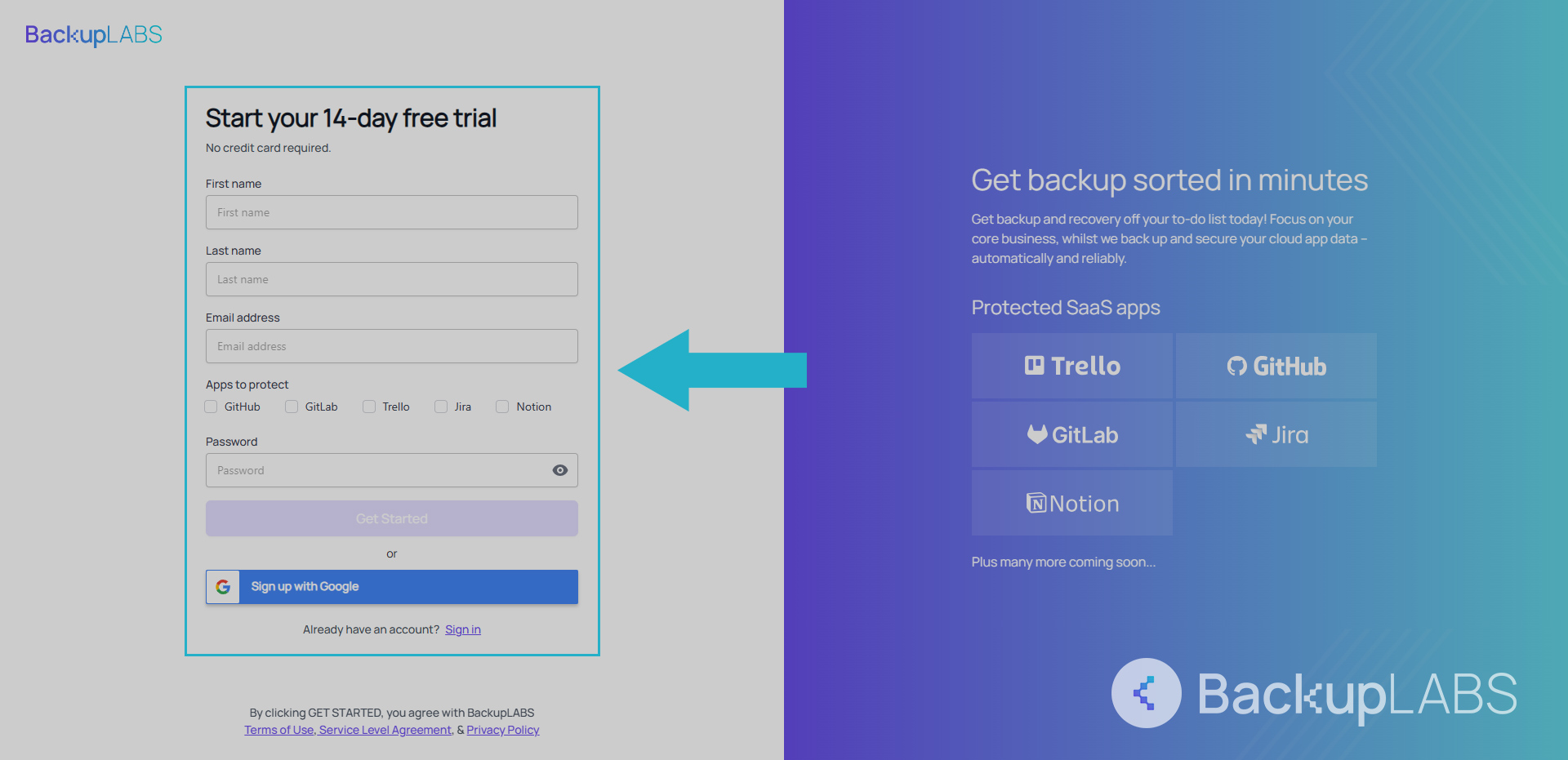
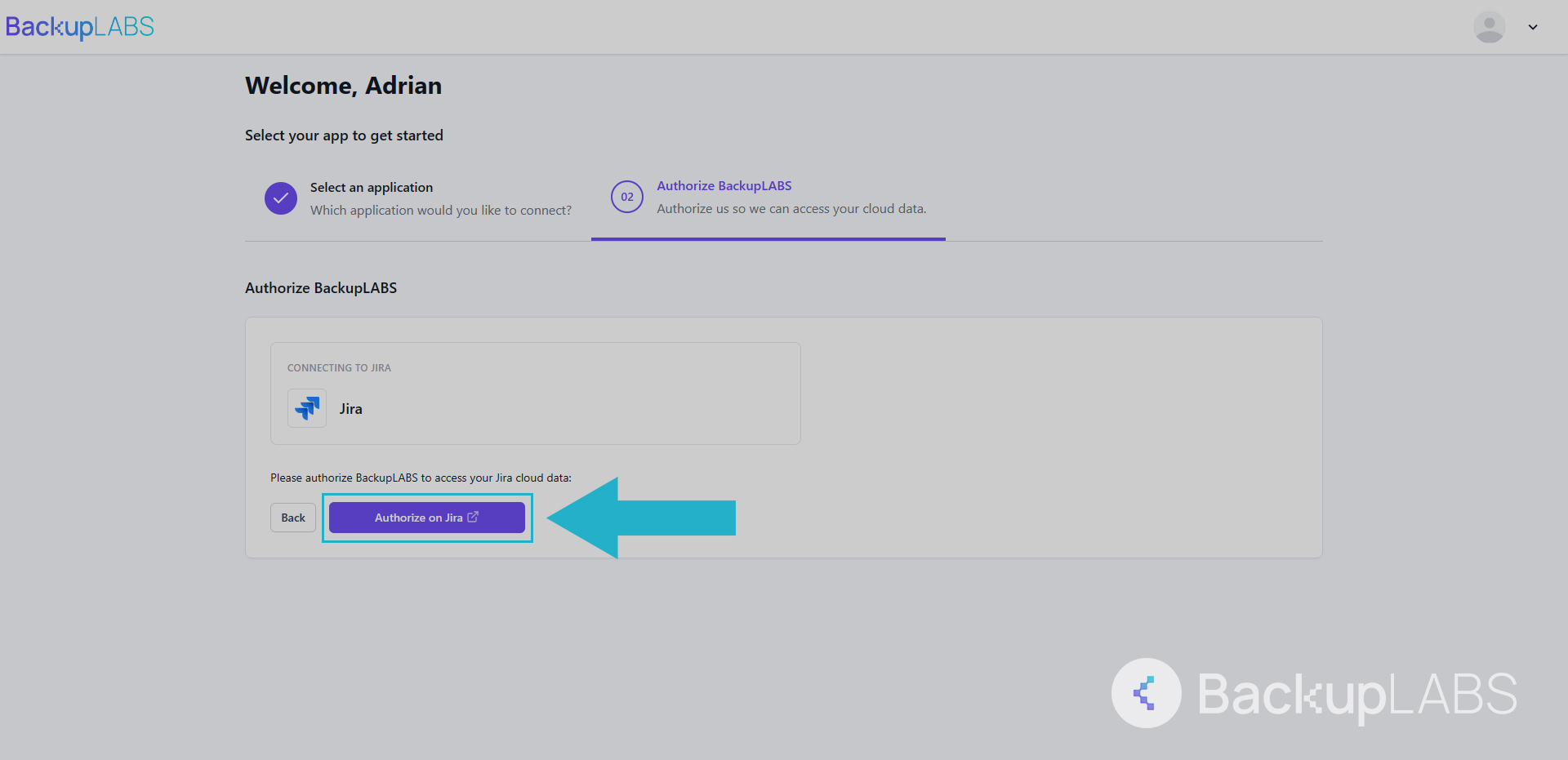
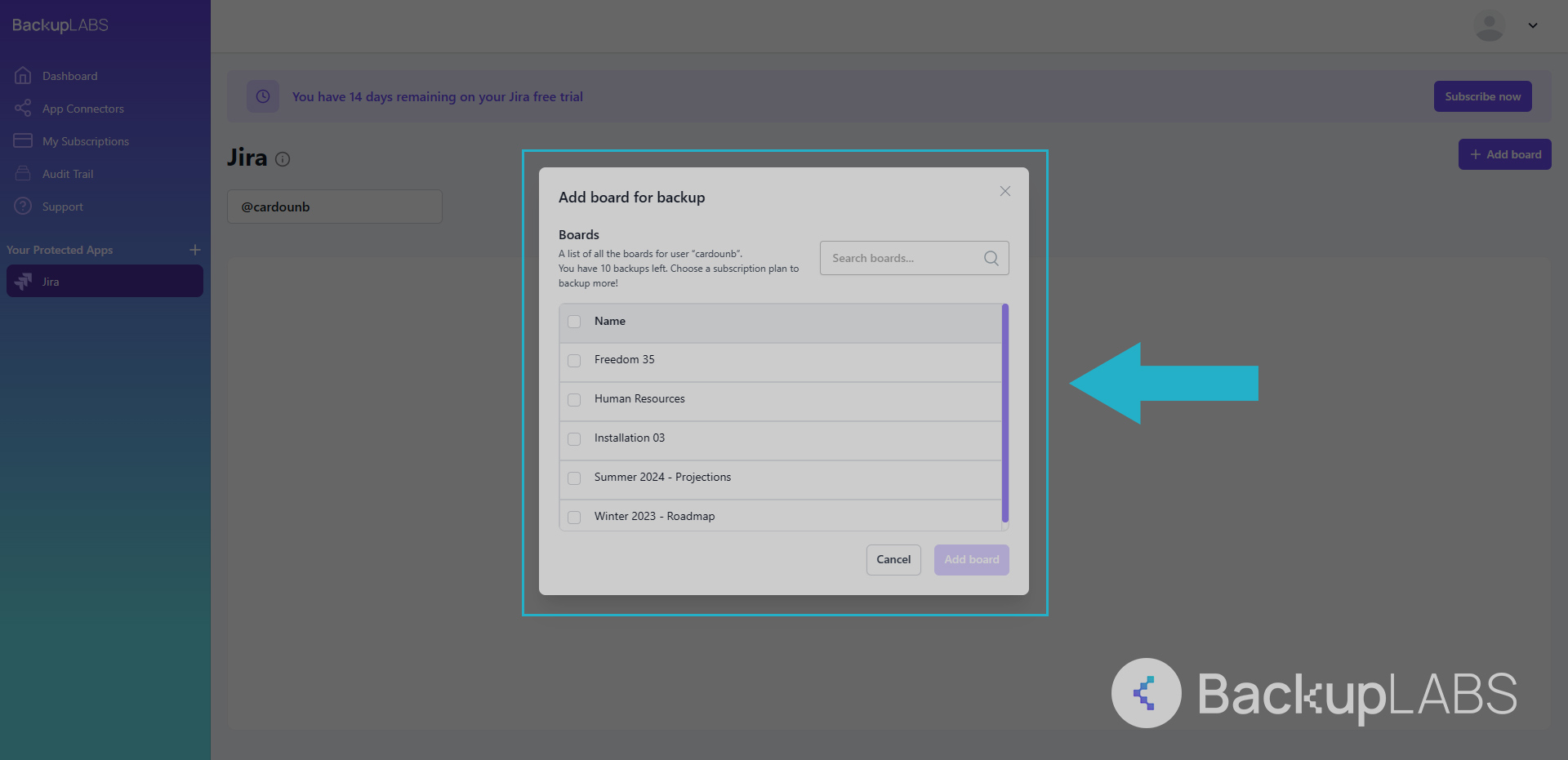
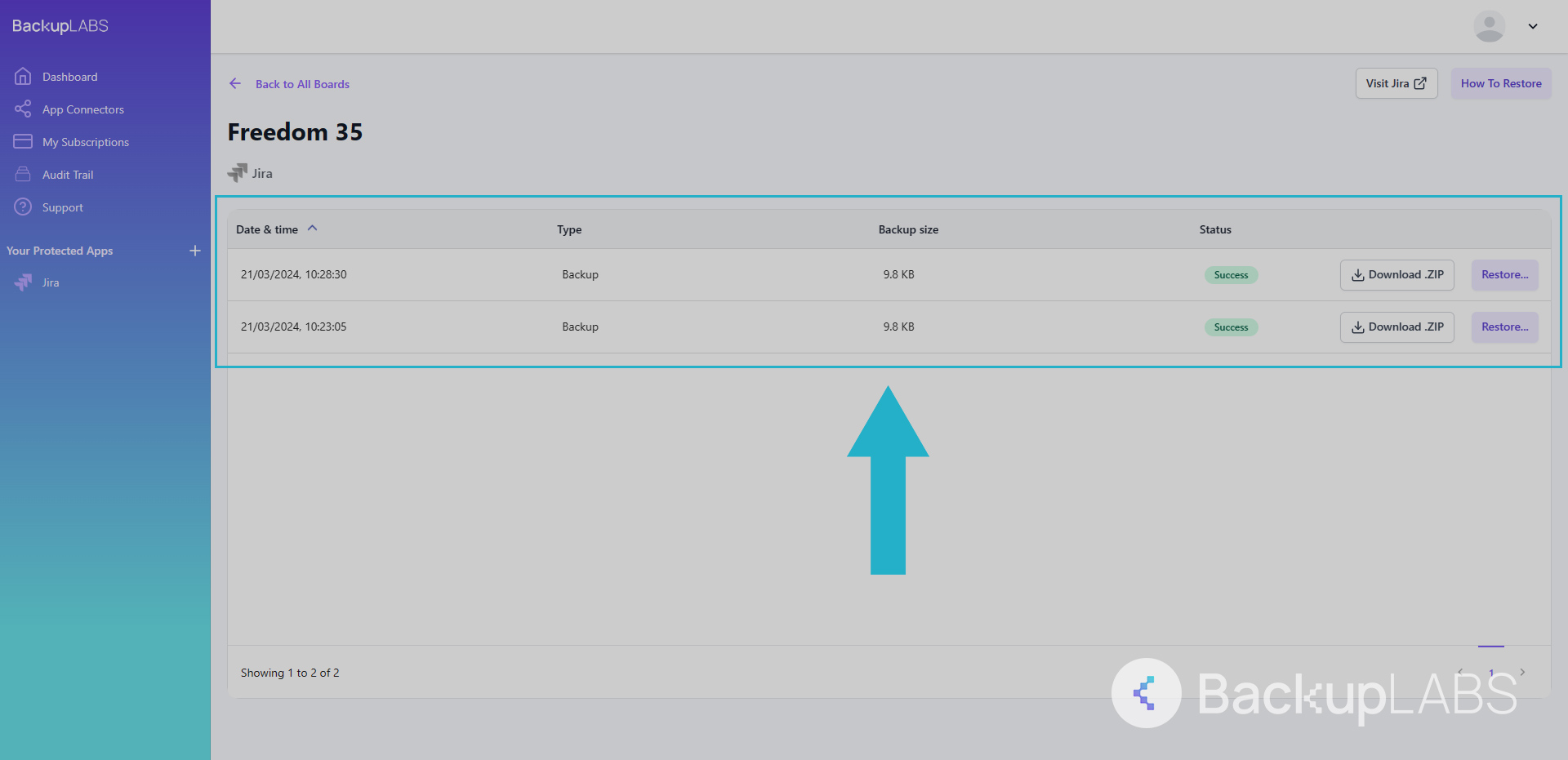
Here’s how to do it in just 4 steps:
- Create a BackupLABS account
- Authorise your Jira account with us via Atlassian
- Select the projects you want to backup
- Restore your projects at any time and in bulk with just a few steps
Why choose BackupLABS as your Jira backup solution?
Automated Jira backups are a game-changer when securing your critical project data.
Discover the benefits of BackupLABS for your automated Jira database backup needs and experience unparalleled convenience and security.
- No-Code, no scripting: Backup and restore your Jira issues with simple point-and-click actions through our user-friendly interface.
- Compliance: Maintain accurate, easily accessible records of your Jira data history, ensuring legal compliance with regulations and standards.
- Encrypted backups: Your data is secured complete with SOC2, ISO credentials and 256-bit AES encryption during transfer and while at rest.
- Ransomware protection: Protect your data from malicious attacks, ransomware, and potential breaches, keeping your critical information safe.
- On-demand backups: If you have vital data that needs capturing immediately, you don’t have to wait for automated schedules
- Simple pricing: No complicated overages. Manage your subscription at anytime
- Ownership: Optionally download all your archives, with complete revision history
- Peace of mind: Restoring your data will never override, allowing you to compare and review your data before moving forward
- Critical reporting: Receive real time account level notifications with full admin controls
- 24/7 dedicated support: Our round-the-clock support team can assist you with any issues.
Try backing up your Jira cloud data with BackupLABS for yourself. Sign up for our 14-day free trial.
How to Backup Notion DatabasesNotion is your trusty companion for flexible management for your work and teamspaces.
This dynamic platform allows you to organize tasks, adapt workflows, and effortlessly track your project’s progress.
But how can you make sure your valuable data stays safe and sound while it’s stored on the platform?
In this blog, we’ll explore why shielding your Notion data is an absolute must, unravel the how-tos of effective backups, and introduce you to BackupLABS as your ultimate solution for securing your Notion workspaces.
Why Is It Important to Back up Your Notion Data?
It’s crucial to back up your Notion data because even though the platform backs up its internal systems, it doesn’t provide an automated nor managed backup and restore solution for individual users, even on their paid plans.
Notion follows a shared responsibility model, which means they make sure their network and servers are operational, but safeguarding your data is your responsibility.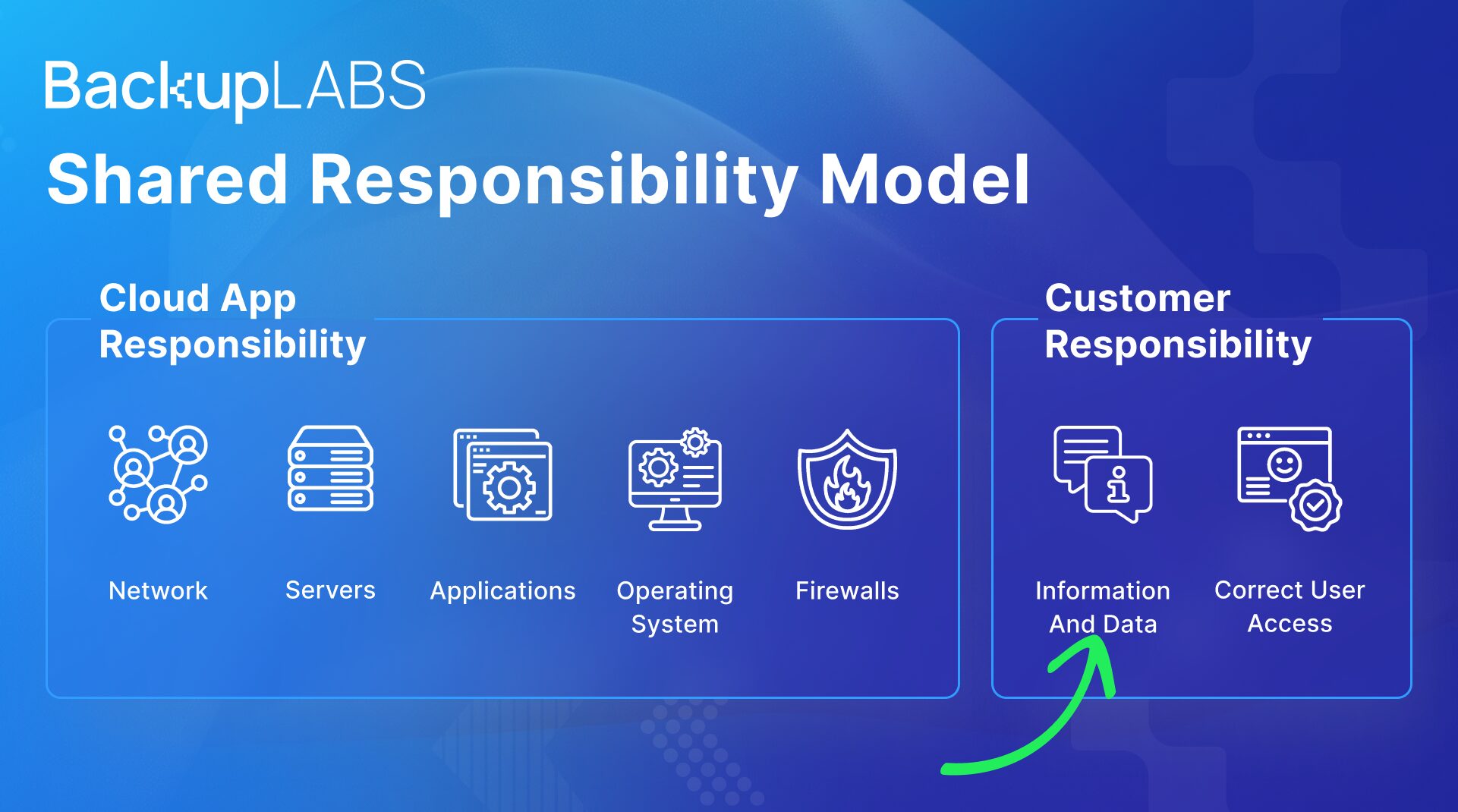 Without a personal backup, you risk losing valuable data if any unexpected issues occur within the platform.
- Information loss: You may lose important notes, documents, and project details, disrupting your work
- Work disruption: Data loss can cause delays and disruptions in daily tasks and projects, affecting productivity
- Reputation impact: If sensitive client or customer information is lost, it can damage your reputation with customers
- Financial costs: Recovering lost data alone can be costly, but data loss might also lead to missed opportunities and lost revenue
- Emotional stress: Data loss can be emotionally distressing, causing anxiety and frustration for you, your team, and your customers
How To Backup Your Notion Data
There are several methods for backing up your Notion workspaces. You can do it yourself (manually), or work with a third party backup provider (automated).
Manually Export Notions backups
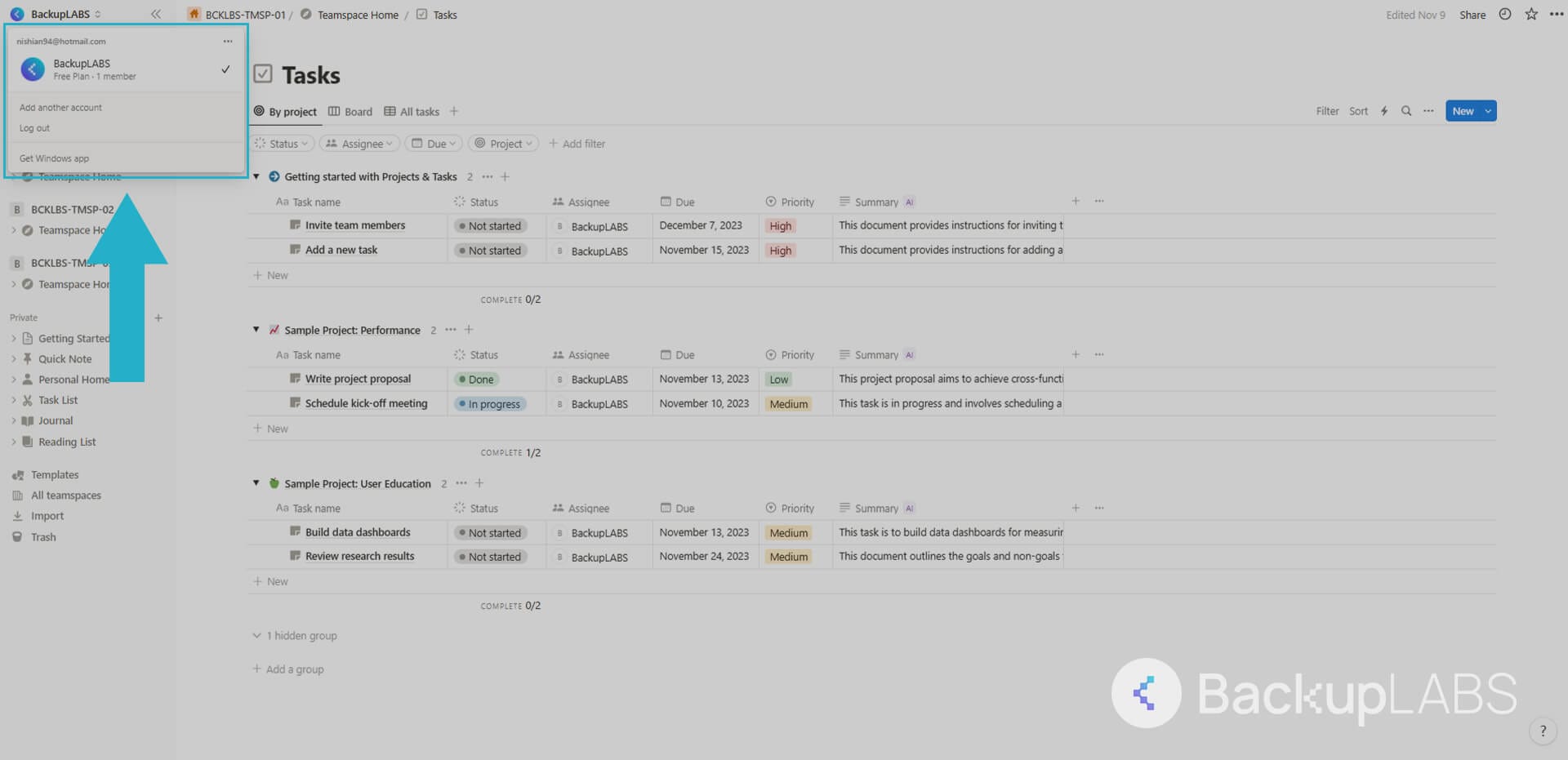
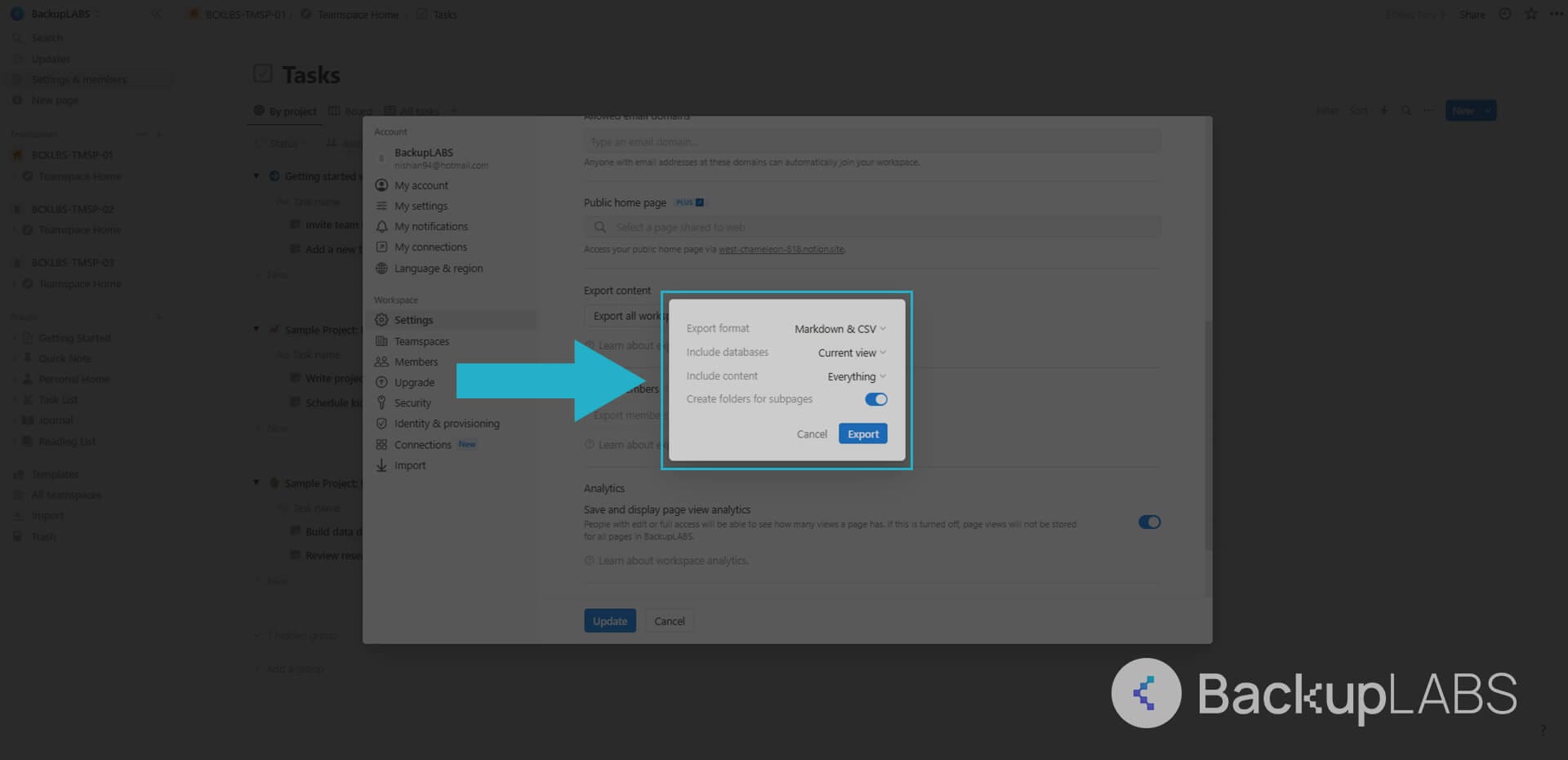
- Inside Notion, select the Workspace you want to export
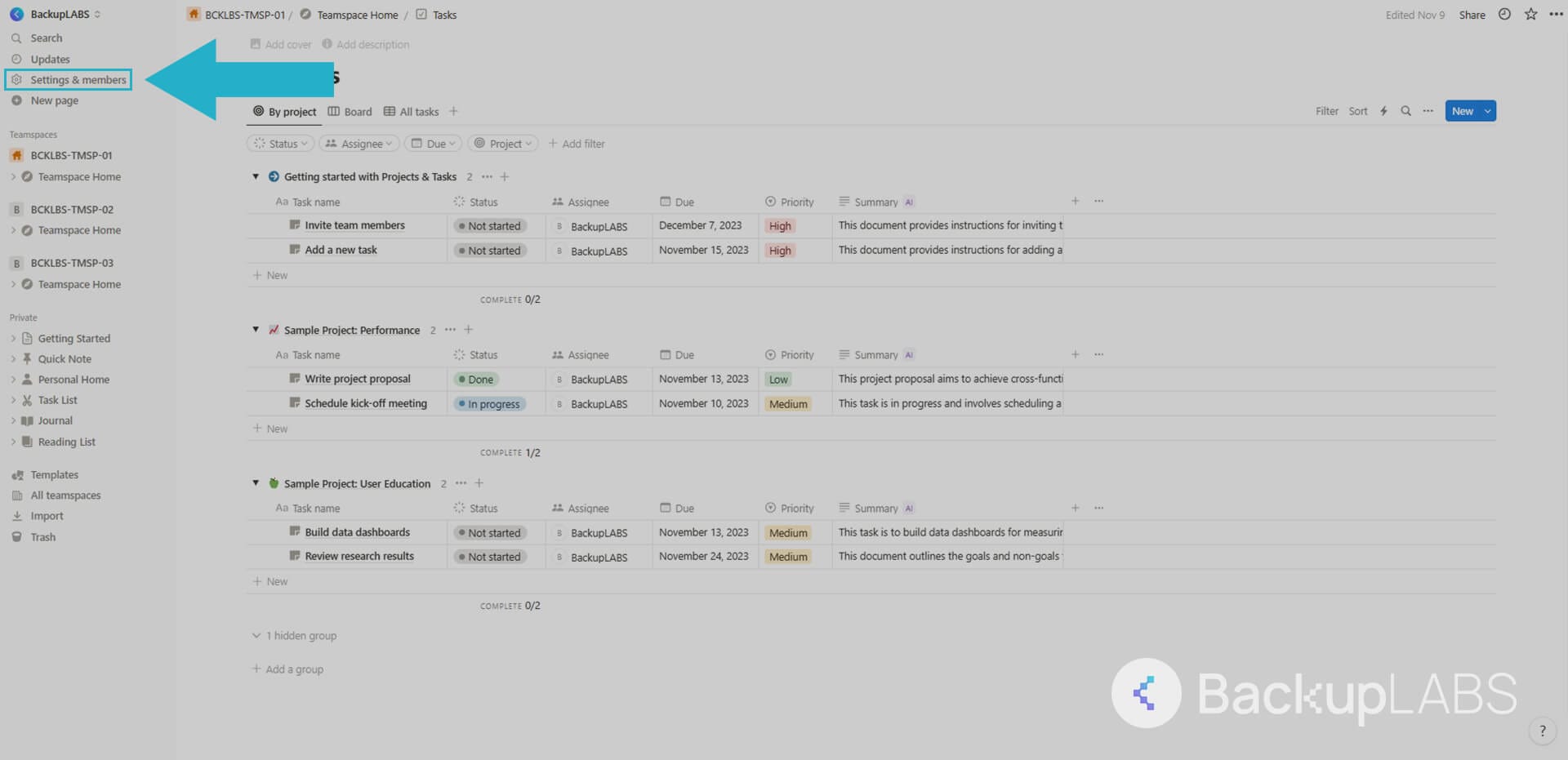
- Then select Settings & members
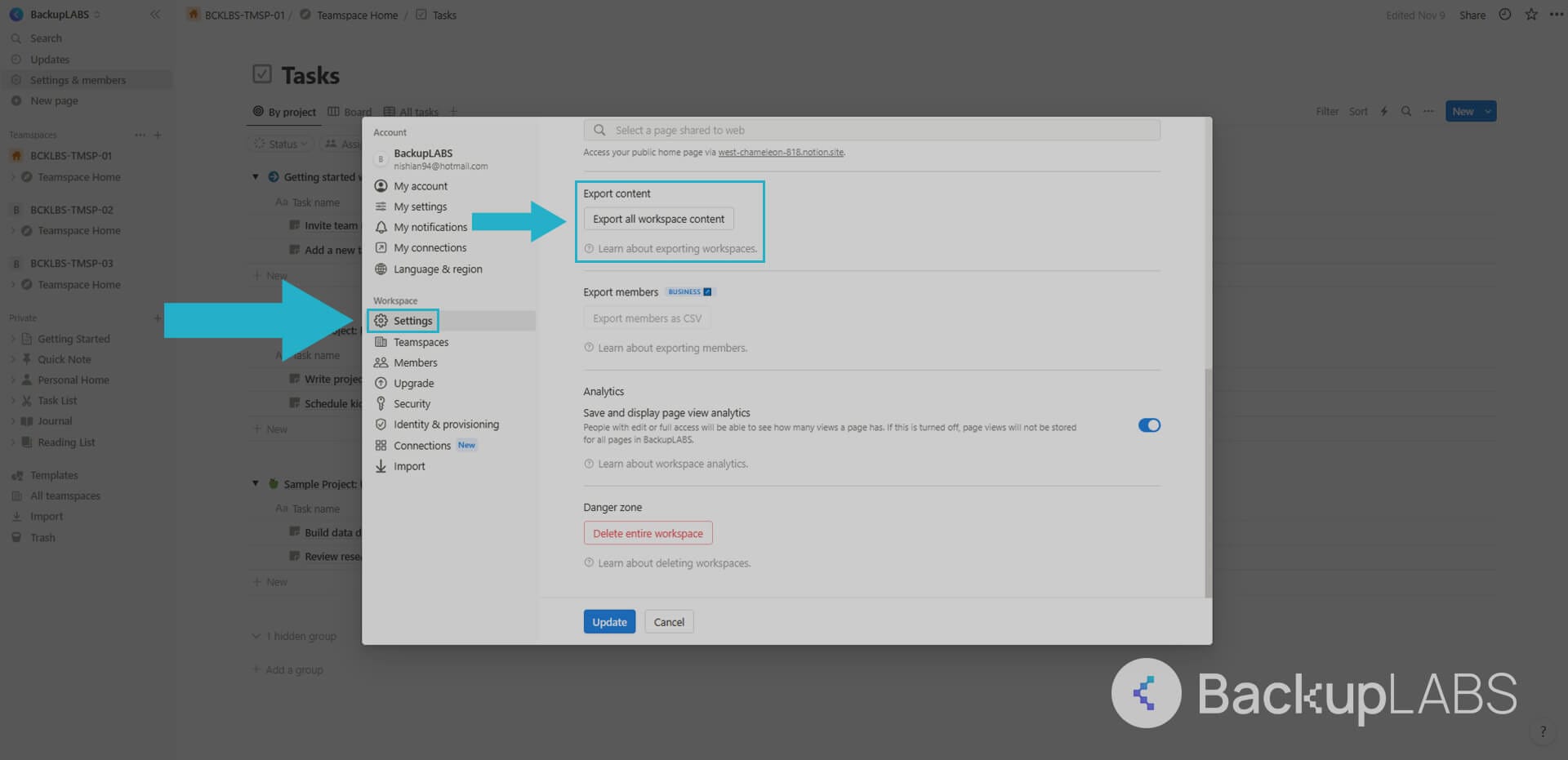
- Select Settings and scroll down to Export content
- Select Export all workspace content, then review the options available. When ready, select Export
Pros:
- Cost: Even with a free account, this option is available
- Archive accessibility: The ability to add a clear separation to your teamspaces makes it easier to read your archives
Cons:
- Time-consuming: Regular manual backups can be time-consuming, especially for extensive workspaces
- Risk of forgetting: If you forget to back up your Notion account manually on a consistent schedule, you risk losing recent data
- Human error: Management of manual backups can be prone to human errors
- Unclear metadata: While the export is straight forward, it’s unclear what is really included in your archives
- Desktop only: This method can only ever be done via a desktop browser
Artur’s GitLab Notions Backup Script
This is a free, custom made, script based solution using GitLab for automated Notion backups. It’s great for Workspaces featuring large imagery. More information can be found here.
- Copying Notion’s behaviour
• Inside Notion select Settings & members, then open Chrome DevTools and select the Network tab• Go to XHR and clear the console, begin the export and select enqueueTASK
• Next, navigate to Headers and scroll down to cookie and find this:
token_v2=xxx;• Copy and paste (for safe keeping) the following:
token_v2=” and ; (xxx)• Finally, at the bottom of the page under Request PayLoad, save the spaceID value and label it NOTION_SPACE_ID
- GitLab Token
• Inside GitLab, navigate to Settings, then Access Tokens
• Select Create Personal access token, and then copy paste (for safe keeping) the CI_PUSH_TOKEN under Your new personal access token
- Script setup
• Create a new Project and select Set up CI/CD
• Paste the following script from here in the .gitlab-ci.yml file
- Creating a cronjob
• Inside GitLab, select CI / CD under Schedules
• Select New schedule and complete the page with what you want
• Then Save pipeline schedule followed by Play. Be patient until the progress circle is green.
Pros:
- Automation: Streamlines Notion backups with an automated process, saving time
- Includes imagery: Ensures comprehensive backups, especially beneficial for Workspaces with large imagery
- Free to setup: Cost-effective solution, allowing you to set up automated backups without additional expenses
Cons:
- Scripting knowledge: Setting up Artur’s GitLab Notions Backup Script demands scripting proficiency, potentially posing a challenge if you don’t have prior scripting experience
- Potential additional external costs: Storage will eventually result in paid and if not, self management to keep within your account limits
- Management: Some level of managing is still required for your archive history
- Unclear Metadata: It’s not clear how much is retained
Shockz’s GitHub Automation Script for Notion
A free custom Python 3 script that’s compatible with Windows and Linux.
- Installing
• Get the necessary files to start with the repository here
• The scripts requies Selenium. Install it from your terminal or SSH using:pip install selenium
pip install requests
- Running
• Then run the repository:git clone https://github.com/shockz-offsec/Automatic-Notion-Backup.git
cd Automatic-Notion-Backup - Cofiguration
• The config.json contains this, to customise later:{
"REMOVE_IDS": true,
"NOTION_SPACE_ID":"Your_space_id",
"DOWNLOAD_PATH": "C:\Users\YourUsername\Downloads",
"TARGET_PATH": "C:\path\to\your\backup\folder",
"DEBUG_PATH": "C:\path\to\your\logs\folder",
"EMAIL":"your_notion_email",
"PASSWORD":"your_password"
}REMOVE_IDS: a boolean parameter that indicates whether the script should remove
AWS identifiers from the downloaded files
NOTION_SPACE_ID: The space id of your notion notes
DOWNLOAD_PATH: the path where the downloaded files will be stored
TARGET_PATH: the path where the processed backup files will be stored
DEBUG_PATH: the path where the script logs will be saved
EMAIL: the email address associated with the Notion account
PASSWORD: the password associated with the Notion account - Tokens
• Go to Notion and Inspect Element inside your desktop browser
• Select the Network tab and refresh the page
• Locate getPublicSpaceData and select one occurrence
• In the Response tab your Space ID will be the first value in the first ID field. Copy paste this ID under NOTION_SPACE_ID inside the config.json file from earlier - Usage
• Run the following command on your SSH terminalpython3 notion_backup.py - Automate
• To automate and create cronjobs for your backups.
Windows
Create a schedule inside Windows Task Scheduler. Create a .bat and then use:
@echo offC:Python3python.exe "C:pathtonotion_backup.py"Linux
Use a standard Cronjob
Pros:
- Automation: Saves time and effort by automating the Notion backup process
- Free setup: No additional costs; the script is accessible without financial barriers
- Customizable: You can tailor the backup schedule and content according to their preferences
Cons:
- Scripting knowledge required: Requires scripting knowledge, including familiarity with Linux, limiting accessibility
- Potential additional costs: You may face extra storage expenses on servers or GitHub, depending on data volume
- Unclear metadata: Lack of clear metadata may hinder your organization and searching for specific backup versions
- Manual version management: You must manually handle versioning, lacking the convenience of automatic version control
The Bottom Line
While the manual approaches discussed in this blog might suffice for individual users or hobbyists seeking to back up their Notion data, there is no doubt a higher level of data protection and accessibility is needed in professional and corporate settings.
Overall, reliability, robustability, convenience, advanced features and encryption can only be found through a reputable backup provider like BackupLABS.
Automated Notions Backups with BackupLABS
The second option for backing up your valuable Notion data is to enlist the help of BackupLABS as your backup provider.
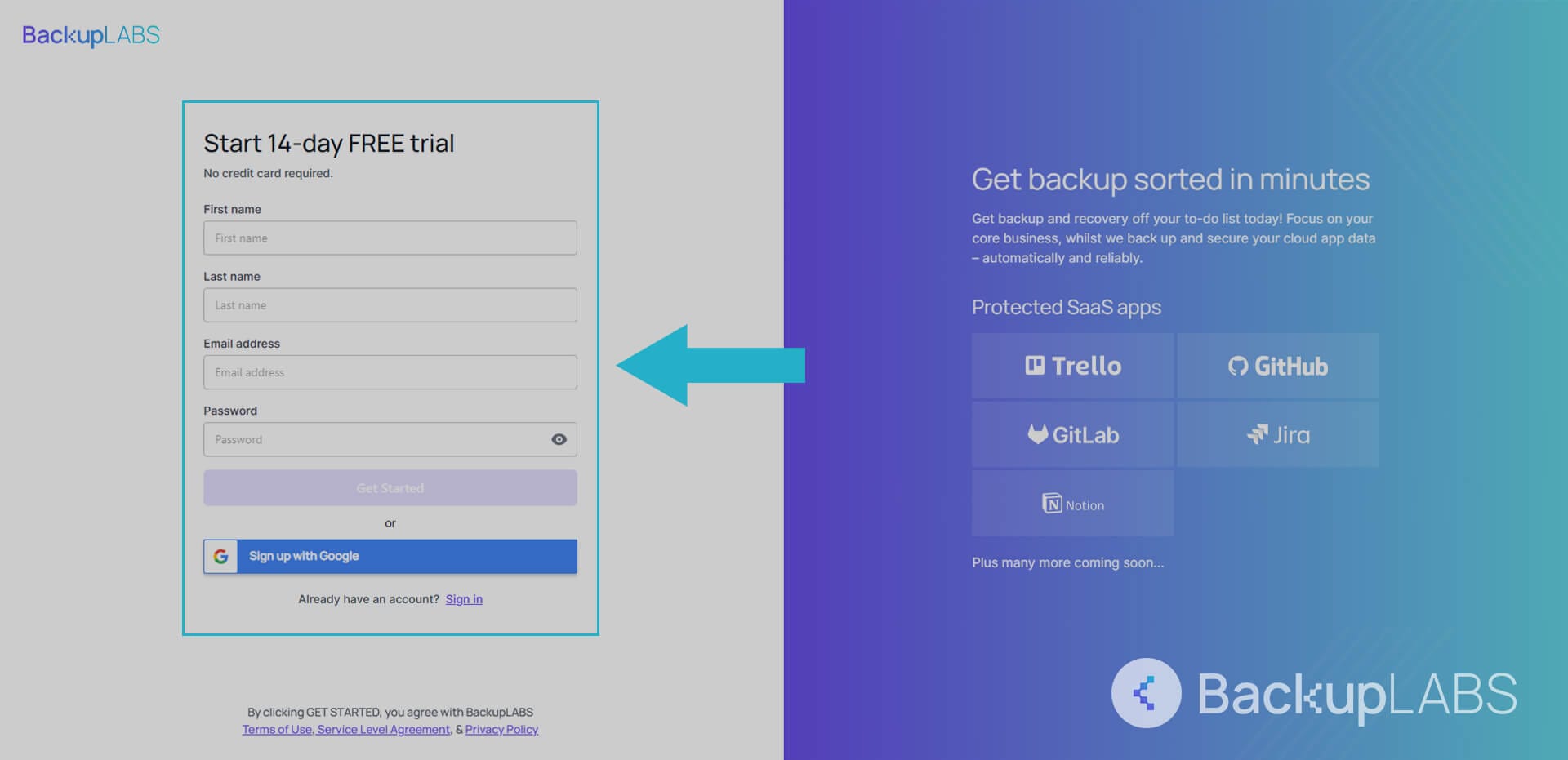
- Create a BackupLABS account
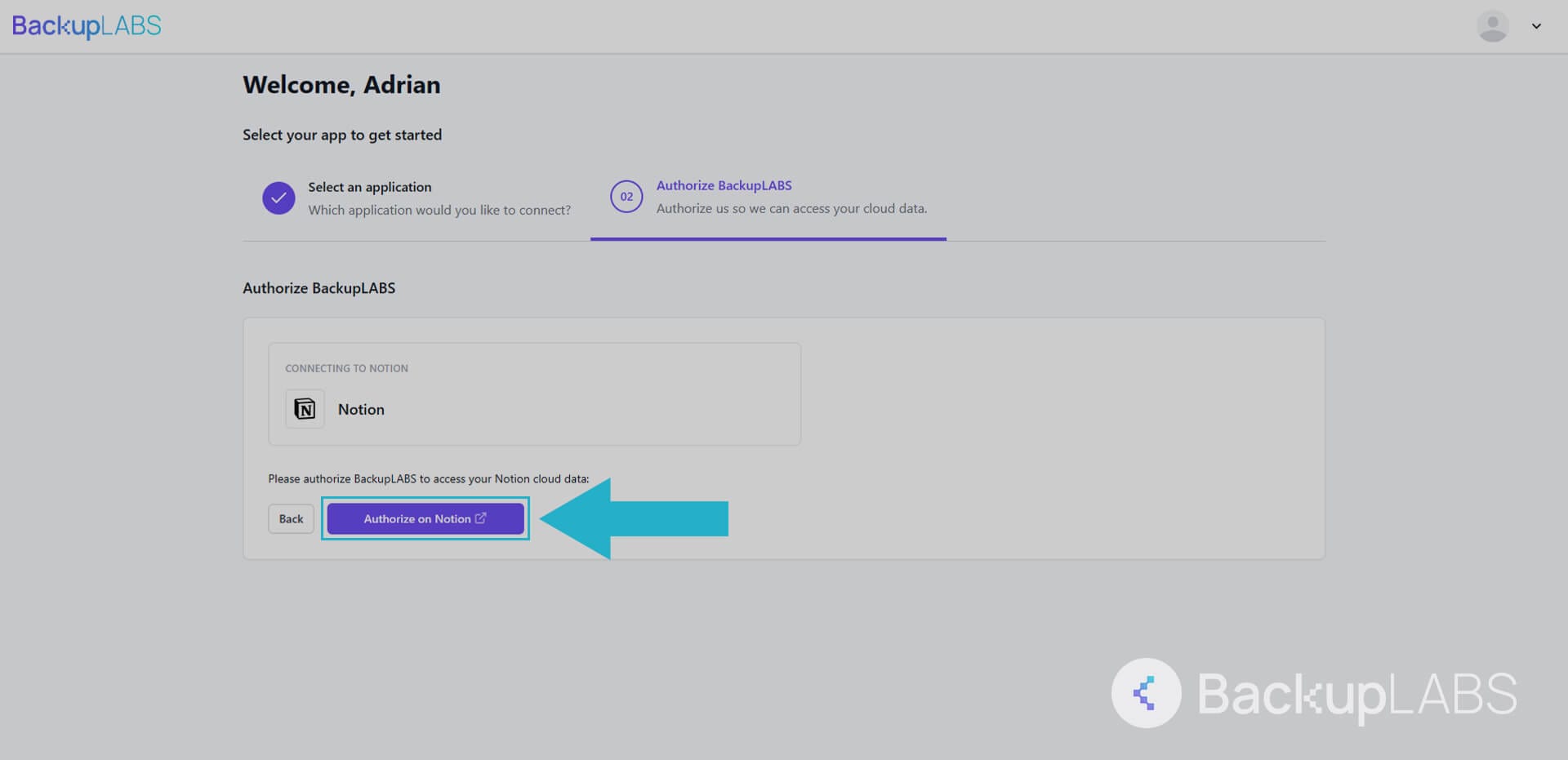
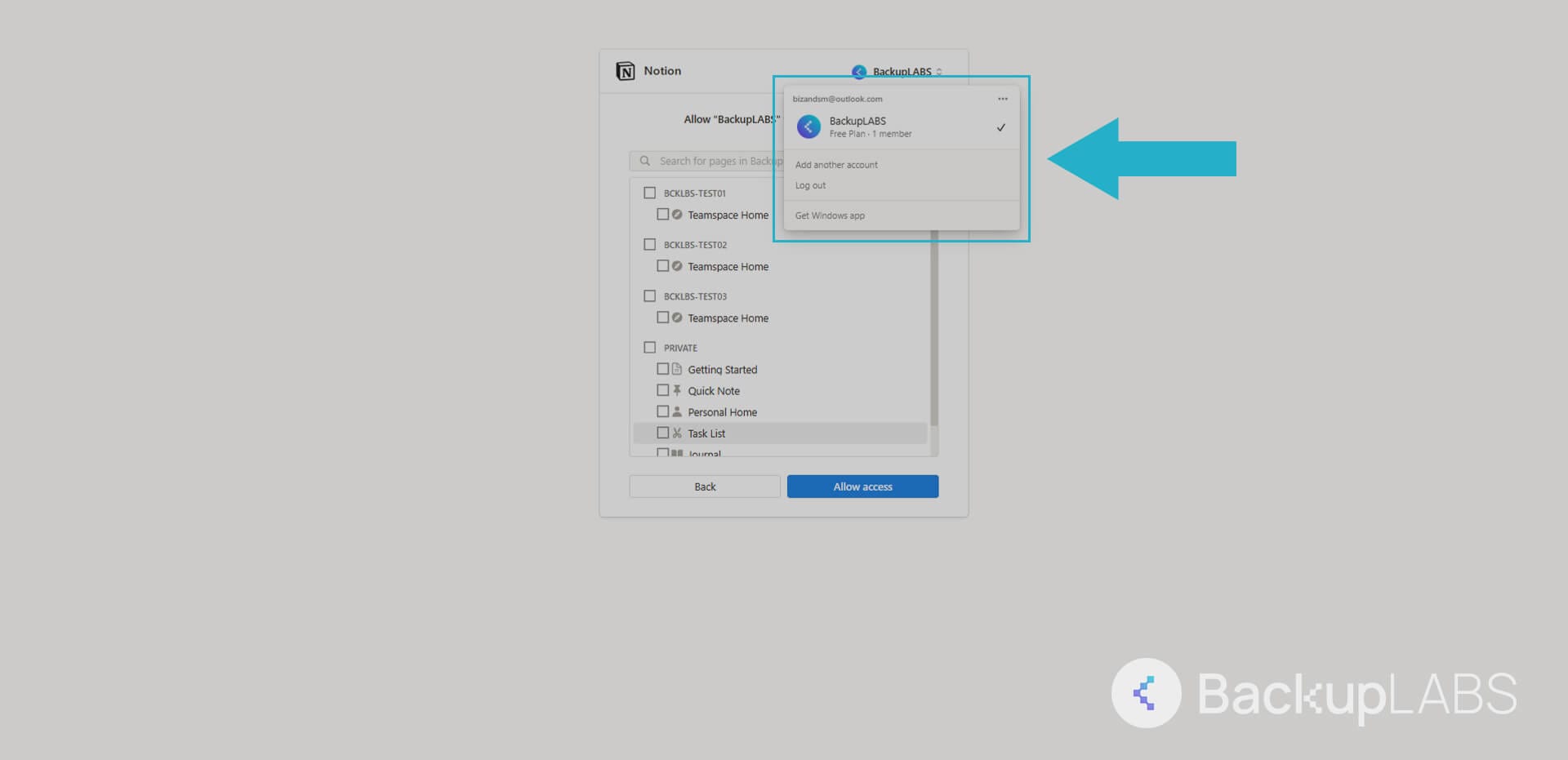
- Authorise your Notion account with us
- Add as many of your workspaces as you’d like
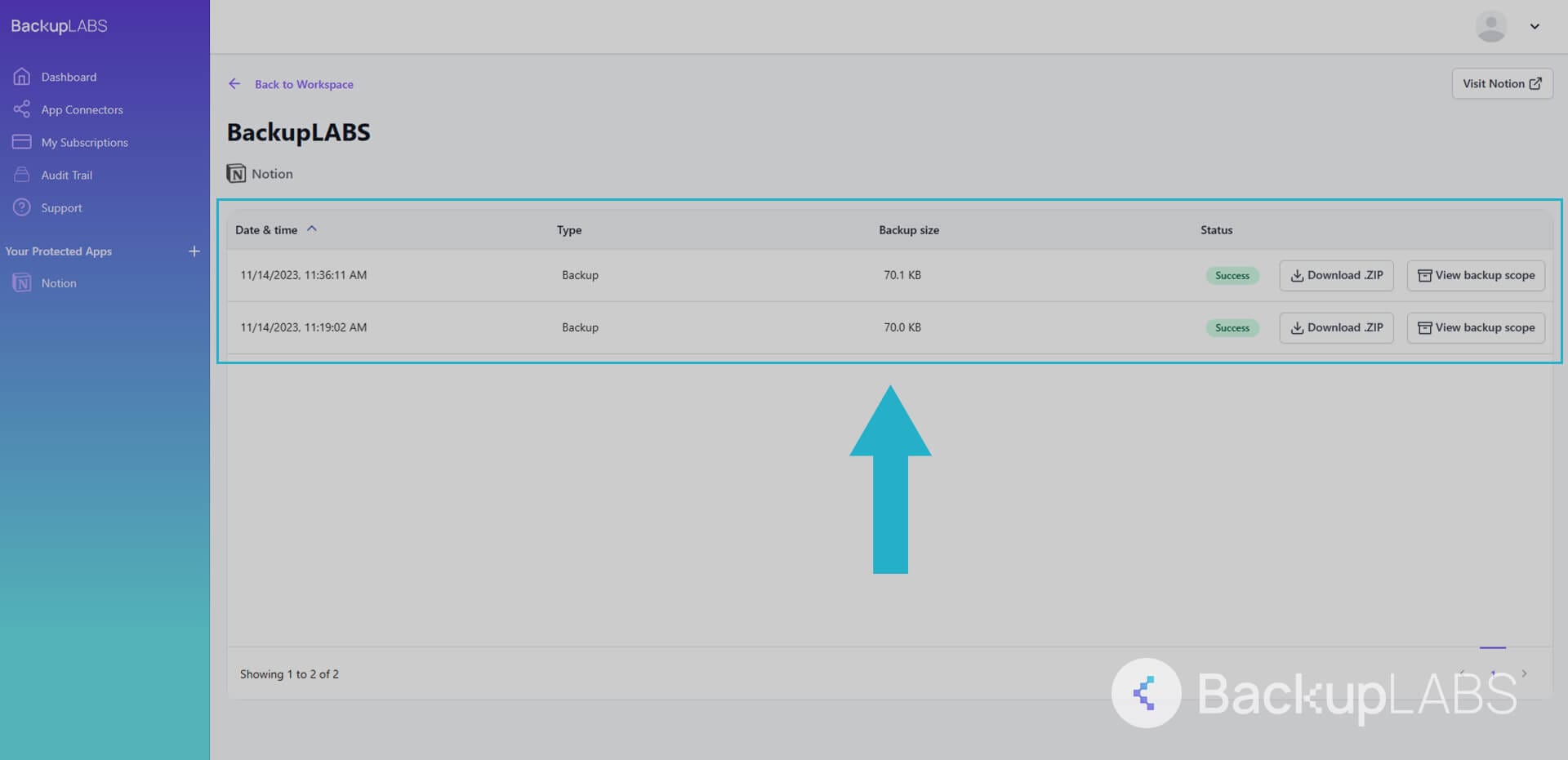
- Access your workspace backups at any time to review as well as download for archive
Why Choose BackupLABS as Your Notion Backup Solution?
Notion operate on the Shared Responsibility Model. Put simply this means they look after their servers, application and network. However the data, your data, remains your responsibilty to backup and protect against common risks.
 With BackupLABS you can benefit from:
- Effortless backup: Backup and restore your Notion data with a few clicks with our user-friendly interface. No coding or scripting is used.
- Rapid Setup: Secure your Notion workspaces and multiple files in under 5 minutes, guaranteeing minimal disruptions to your workflow.
- Data compliance: Keep accurate and easily accessible records of your Notion data history in compliance with current regulations and standards.
- Robust encryption: Your data is safeguarded with 256-bit AES encryption during transfer and storage, providing top-tier security.
- Ransomware defense: Shield your data from malicious attacks, ransomware, and potential breaches, safeguarding your crucial information.
- 24/7 customer support: Our dedicated and friendly support team is available round-the-clock to assist you with any issues for seamless Notion data backup.
- Daily progress reports: Stay updated with access to daily reports on the status of your data backup, offering peace of mind and transparency in data protection.
- Ownership: Download and keep all your backups on demand.
Try BackupLABS for yourself. Sign up for our 14-day free trial.